WO2024253003A1 - 画像読取装置及びその制御方法、並びにプログラム - Google Patents
画像読取装置及びその制御方法、並びにプログラム Download PDFInfo
- Publication number
- WO2024253003A1 WO2024253003A1 PCT/JP2024/019717 JP2024019717W WO2024253003A1 WO 2024253003 A1 WO2024253003 A1 WO 2024253003A1 JP 2024019717 W JP2024019717 W JP 2024019717W WO 2024253003 A1 WO2024253003 A1 WO 2024253003A1
- Authority
- WO
- WIPO (PCT)
- Prior art keywords
- image reading
- image
- terminal
- session
- image data
- Prior art date
- Legal status (The legal status is an assumption and is not a legal conclusion. Google has not performed a legal analysis and makes no representation as to the accuracy of the status listed.)
- Pending
Links
Images







Classifications
-
- H—ELECTRICITY
- H04—ELECTRIC COMMUNICATION TECHNIQUE
- H04N—PICTORIAL COMMUNICATION, e.g. TELEVISION
- H04N1/00—Scanning, transmission or reproduction of documents or the like, e.g. facsimile transmission; Details thereof
Definitions
- the present invention relates to an image reading device, a control method thereof, and a program.
- image reading device By reading an image of a document using an image reading device and generating image data of the read image, it becomes possible to electronically store image data corresponding to the image of the document or to perform information processing using the image data. Furthermore, when a document reading device equipped with an ADF (Auto Document Feeder) is used, it is possible to read images of a large number of documents more efficiently and generate image data.
- the image data of the read image obtained by the image reading process can be transferred to a terminal device (information processing device) such as a PC or mobile terminal and used for viewing or data processing.
- Patent Document 1 describes a technology in which an image reading device starts a scan process in response to a scan instruction received via a settings screen provided to the web browser, then transitions to a scanning status, and as long as that status does not change, image data can be provided via the web browser.
- a session between a terminal device, such as a mobile terminal or PC, and an image reading device is unintentionally disconnected while a scan process is being performed, the image reading device will be unable to identify (determine) the terminal device that sent the scan instruction.
- a session (connection) may be disconnected, for example, when the terminal device goes into power saving mode or the display screen of a web browser is changed to another screen. If it becomes impossible to identify the terminal device that sent the scan instruction, it may become impossible to transmit image data of the read image obtained by the scan process to the terminal device.
- the present invention provides a technology that enables an image reading device to send image data of a read image to a terminal device even if a session with the terminal device is disconnected while a reading process (scanning process) is being performed.
- An image reading device includes a management means for establishing and managing a session with a terminal device when access is received from the terminal device capable of communicating via a network, and a processing means for performing a reading process for reading an image of a document and generating image data of a read image according to a reading instruction received via the session, and the processing means continues to execute the reading process while it is receiving access via the session at a preset time interval.
- the image reading device can transmit image data of the read image to the terminal device. This reduces the possibility that image data of the read image will be lost when the session is disconnected, and improves user convenience.
- FIG. 1 is a cross-sectional view showing a schematic configuration example of an image reading device 100.
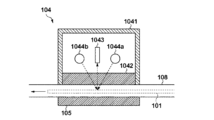
- FIG. 2 is a cross-sectional view showing a schematic configuration example of the image reading unit 104.
- FIG. 3 is a block diagram showing an example of the hardware configuration of the image reading device 100.
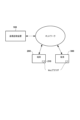
- FIG. 4 shows an example of the configuration of an image reading system.
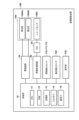
- FIG. 5 is a block diagram showing an example of the functional configuration of the image reading device 100.
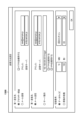
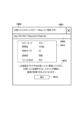
- FIG. FIG. 6 shows an example of a setting screen for scan settings displayed on the terminal 200.
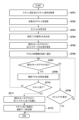
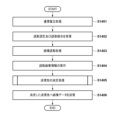
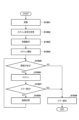
- FIG. 7 is a flowchart showing an example of a procedure for terminal discrimination processing in the image reading device 100.
- FIG. FIG. 1 is a cross-sectional view showing a schematic configuration example of an image reading device 100.
- FIG. 2 is a cross-sectional view showing a schematic configuration example of the image reading unit 104.
- FIG. 3 is a block diagram showing an example of the hardware configuration of the image reading device 100.
- FIG. 4
- FIG. 8 shows an example of a management table used for managing terminals.
- FIG. 9 shows an example of a setting screen for setting the approval method.
- FIG. 10 is a flowchart showing an example of the procedure of an image reading process in the image reading device 100.
- FIG. 11 is a flowchart showing an example of the procedure of the approval process in the terminal 300.
- FIG. 12 shows an example of an operation screen for approval processing.
- FIG. 13 shows an example of a setting screen for setting the transmission method.
- FIG. 14 is a flowchart showing an example of the procedure of an image reading process executed in the image reading device 100.
- FIG. 15 shows an example of the read image information.
- FIG. 16 is a flowchart showing an example of the procedure of the process (S1405) for determining the transmission destination of the image data of the scanned image.
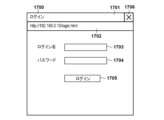
- FIG. 17A shows an example of a login screen.
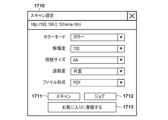
- FIG. 17B shows an example of a scan settings screen.
- FIG. 17C shows an example of a job registration screen.
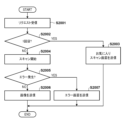
- FIG. 18 is a flowchart showing an example of a procedure of a scan operation.
- FIG. 19 shows an example of a favorite scan screen displayed on the terminal 200.
- FIG. 20 is a flowchart showing an example of a procedure for a scan operation based on scan settings registered in favorites.
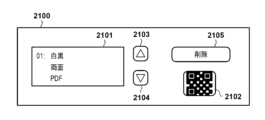
- FIG. 21 shows an example of a screen displayed on the operation unit 130. As shown in FIG.
- ⁇ Image reading device> 1 is a cross-sectional view showing a schematic configuration example of an image reading device 100 according to the present embodiment.
- the image reading device 100 includes a platen 102 on which a document 101 to be read is placed.
- the document on the platen 102 is detected by a document detection sensor 110.
- the documents on the platen 102 are separated one by one by a paper feed roller 106 and sent to a conveying path 108.
- the document 101 sent to the conveying path 108 and conveyed through the conveying path 108 is detected by a registration sensor 109.
- the image reading unit 104 starts reading an image of the document 101 (an image formed on the document) being conveyed through the conveying path 108.
- the image reading device 100 of this embodiment has two image reading units 104 on either side of a transport path 108.
- One image reading unit 104 is configured to read an image on a first side (front side) of the original 101, and the other image reading unit 104 is configured to read an image on a second side (back side) of the original 101.
- a background plate 105 is disposed at a position facing each image reading unit 104 across the transport path 108.
- the background plate 105 is, for example, a black member. Note that the image reading device 100 may be configured to have only one image reading unit 104.
- the original 101 whose image has been read by the image reading unit 104, is transported along the transport path 108 by the transport rollers 107 towards the discharge section 103, and is finally discharged to the discharge section 103 and stacked there.
- the original detection sensor 111 provided in the discharge section 103 is used to detect the original 101 that has been discharged to and stacked on the discharge section 103.
- the original detection sensor 112 provided near the discharge outlet of the transport path 108 is used to detect the original 101 remaining on the transport path 108.
- the image reading device 100 further includes a multi-feed detection sensor 120 located along the transport path 108 between the feed roller 106 and the registration sensor 109.
- the multi-feed detection sensor 120 is used to detect multi-feeds when multiple documents are transported along the transport path 108 in an overlapping state (a state in which multiple documents are in close contact with each other due to static electricity or the like).
- the multi-feed detection sensor 120 is, for example, an ultrasonic sensor equipped with an ultrasonic transmitter and receiver. When an ultrasonic sensor is used, multi-feeds can be detected based on the amount of ultrasonic attenuation when documents (document sheets) pass along the transport path 108.
- FIG. 2 is a cross-sectional view showing a schematic configuration example of the image reading unit 104.
- the image reading unit 104 comprises a housing 1041 and a glass plate 1042 facing the transport path 108.
- the inside of the image reading unit 104 is sealed by the housing 1041 and the glass plate 1042.
- an image sensor 1043 and a pair of light-emitting units 1044a and 1044b are provided inside the image reading unit 104.
- the image sensor 1043 is composed of a line image sensor, for example a CCD line sensor or a contact image sensor.
- the image sensor 1043 is arranged along a direction (main scanning direction) perpendicular to the transport direction of the original 101.
- the image sensor 1043 reads the image of the original 101 being transported line by line in the main scanning direction and outputs an image signal.
- the light-emitting unit 1044a has a light source arranged upstream of the image sensor 1043 in the transport direction of the original 101.
- the light-emitting unit 1044b has a light source arranged downstream of the image sensor 1043 in the transport direction of the original 101.
- the image sensor 1043 is arranged at a position sandwiched between the light-emitting units 1044a and 1044b.
- the light-emitting units 1044a and 1044b are each arranged parallel to the image sensor 1043 along the main scanning direction, and are composed of an LED array including a plurality of LEDs. As shown in FIG. 2, the image sensor 1043 reads the image on the original 101 by receiving reflected light of the light irradiated onto the original 101 by the light-emitting units 1044a and 1044b.
- FIG. 3 is a block diagram showing an example of the hardware configuration of the image reading device 100 according to this embodiment.
- the control unit 10 of the image reading device 100 includes a CPU 11, a RAM (random access memory) 12, a storage unit 13, an input/output I/F (interface) 14, and a communication I/F 15.
- the CPU 11 is composed of one or more processors.
- the CPU 11 controls the entire image reading device 100 by reading out programs stored in the storage unit 13 into the RAM 12 and executing them.
- the RAM 12 is used as a working area by the CPU 11.
- the storage unit 13 is configured to store various programs (e.g., control programs) executed by the control unit 10, and various information or data used in processing by the control unit 10. For example, image data obtained by reading an image of a document using the image sensor 1043 is saved in the storage unit 13.
- the storage unit 13 is composed of one or more storage devices (memories), such as, for example, a ROM (read only memory), a HDD (hard disk drive), and an SSD (solid state drive).
- the input/output I/F 14 is connected to a drive circuit 24 and an image processing circuit 26.
- the drive circuit 24 drives the light emitting parts 1044a and 1044b of the image reading unit 104.
- the image processing circuit 26 is connected to an image sensor 1043 via an ADC (analog/digital converter) 25.
- the image sensor 1043 reads the image of the original 101 being conveyed line by line in the main scanning direction and outputs an image signal.
- the ADC 25 converts the analog image signal output from the image sensor 1043 into digital image data and outputs it.
- the image processing circuit 26 performs image processing such as shading correction on the image data output from the ADC 25.
- the CPU 11 acquires the image data output from the image processing circuit 26.
- the communication I/F 15 is an interface for communicating with an external device, and may be configured as a wired communication interface, a wireless communication interface for wireless LAN communication or Bluetooth (registered trademark) communication, a USB interface, or a SCSI interface.
- the communication I/F 15 is a wired communication interface connected to a wired LAN (local area network).
- the image reading device 100 may be equipped with multiple communication I/Fs 15 connected to individual external devices or networks.
- the image reading device 100 may be equipped with multiple communication I/Fs 15, including a USB or SCSI interface directly connected to an external device, and a wired communication interface connected to a wired LAN.
- the communication I/F 15 can communicate with external devices according to any communication protocol and via any communication path. When multiple external devices are connected, different communication protocols and communication paths may be used for each external device.
- the communication I/F 15 may be configured to communicate with the terminal 200 (FIG. 4) using the HTTP protocol and to communicate with the terminal 300 (FIG. 4) using the FTP protocol.
- the image reading device 100 of this embodiment has a web server 500 (FIG. 5) that can communicate with external devices according to the HTTP protocol. Therefore, the external device can access the web server 500 of the image reading device 100 by a web browser running on the external device.
- the image reading device 100 includes an operation unit 130 connected to the control unit 10.
- the operation unit 130 includes an input unit and an output unit.
- the input unit includes a touch panel, hard keys, etc., and accepts various operations from the user.
- the output unit includes a display device such as a liquid crystal display, and outputs (displays) various information to the user.
- the input unit and the output unit may be realized as a single module, such as a touch panel display.
- the operation unit 130 may display a screen showing the current state (status) of the scanner (image reading device 100) by the CPU 11.
- the scanner state may be, for example, a state in which a document (sheet) has been jammed on the transport path, a state in which a double feed has been detected and transport of the document has been intentionally stopped, a cover open state in which the cover of the image reading device 100 is open and the document cannot be transported, a scanning in progress state in which the document is transported and scanned, a state in which image processing is being performed on the image data obtained by scanning the image of the document, etc.
- the above-mentioned scanner state may be shown by a character string or an icon.
- the operation unit 130 may also show the above-mentioned scanner state by a sound or a blinking state of an LED, etc.
- the operation unit 130 may also be provided with a display device composed of segment LEDs.
- the control unit 10 when the control unit 10 (CPU 11) receives an instruction to start reading an original (reading instruction) by operating the operation unit 130 or from an external device, the control unit 10 starts image reading processing for the original 101 set on the original table 102.
- the CPU 11 first drives the paper feed roller 106 to start transporting the original 101 from the original table 102.
- the originals are separated one by one and transported through the transport path 108.
- the CPU 11 controls the image reading unit 104 to read the image of the original 101 based on the timing of the detection.
- the CPU 11 controls the emission of light from the light-emitting units 1044a and 1044b and drives the image sensor 1043 to read the image of the original 101.
- the image reading unit 104 reads the image of the original 101 using the image sensor 1043 to generate image data of the read image, and outputs the generated image data to the control unit 10.
- the control unit 10 stores the obtained image data in the storage unit 13 of the image reading device 100.
- the image data may be stored in an external device (server device) that can communicate with the image reading device 100.
- the image reading system includes an image reading device 100 and terminal devices (terminals) 200 and 300 that can communicate with the image reading device 100 via a network.
- the network includes a wired LAN and a wireless LAN.
- the communication I/F 15 of the image reading device 100 is communicatively connected to the terminals 200 and 300 via the network.
- the network may include a mobile network, the Internet, a public wireless line, and the like.
- the terminals 200 and 300 are configured as information processing devices such as personal computers (PCs) or mobile terminals.
- the terminals 200 or 300 are configured as mobile terminals such as smartphones or tablet terminals, the terminals may communicate with the image reading device 100 by wirelessly connecting to a wireless access point for wireless LAN communication and connecting to a wired LAN via the wireless access point.
- the terminal 200 is a terminal device used by a user (operating user) who operates the image reading device 100.
- the terminals 200 and 300 are used by different users. The following mainly describes the terminal 200, but the same applies to the terminal 300.
- the terminal 200 has a web browser 210 pre-installed.
- the user operates the image reading device 100 via the web browser 210 running on the terminal 200.
- the terminal 200 accesses the web server 500 of the image reading device 100 via the web browser 210 in accordance with the user's operation.
- the web browser 210 obtains HTML (Hyper Text Markup Language) data from the web server 500 as screen data corresponding to an operation screen for operating the image reading device 100, and displays the operation screen based on the obtained HTML data.
- HTML Hyper Text Markup Language
- the terminal 200 web browser 210) receives an instruction to start reading a document (scan instruction) from the user via the displayed operation screen, it transmits the scan instruction to the image reading device 100.
- the image reading device 100 performs the image reading process (scanning process) as described above in accordance with the scan instruction received from the terminal 200.
- the image reading device 100 starts transporting the original 101, reads the original using the image reading unit 104, and stores the image data of the obtained read image in the storage unit 13.
- the image reading device 100 executes a terminal discrimination process, which will be described later using FIG. 7, using the web server 500 (FIG. 5).
- the stored image data is then transmitted (downloaded) to an external device such as the terminal 200 via the network.
- the image reading device 100 of this embodiment is performing a scan process in accordance with a scan instruction from the terminal 200, it accepts access from the terminal 200 using an individual URL (individual URL for acquiring status) generated by the terminal discrimination process.
- the terminal 200 can acquire status information indicating the status of the image reading device 100 (scanning, scan completed, error occurring, etc.).
- the terminal 200 is also provided with an operation screen (status screen) that includes a display of the status, and can display the operation screen using the web browser 210.
- the image reading device 100 transmits HTML data of an operation screen for downloading (obtaining) the image data stored in the memory unit 13 to the terminal 200 in response to access to the individual URL.
- This HTML data describes a URL for referencing (receiving) the image data.
- the user of the terminal 200 can instruct the download of the image data by using a link for accessing the above URL, which is included in the operation screen displayed by the web browser 210 based on the HTML data.
- the image reading device 100 may guide (i.e., redirect) the terminal 200 to change the access destination from the individual URL for status acquisition to the individual URL for downloading, depending on the completion of the scan process.
- the image reading device 100 may perform display control to transition the display screen of the web browser 210 from the status screen provided in response to the access to the individual URL to a download screen where the image data can be downloaded.
- the image reading device 100 After the terminal 200 acquires the image data of the scanned image stored in the storage unit 13, the image reading device 100 performs a process to delete (discard) the image data from the storage unit 13.
- image reading device 100 of this embodiment operates so as not to provide a scan setting screen (FIG. 6) to another terminal (terminal 300, etc.) until terminal 200 acquires image data of the scanned image.
- a scan setting screen FIG. 6
- the web browser of terminal 300 accesses web server 500 of image reading device 100, it cannot acquire screen data for the scan setting screen and cannot display the scan setting screen.
- the device may be configured to provide a scan setting screen to another terminal.
- ⁇ Functional configuration of the image reading device> 5 is a block diagram showing an example of a functional configuration (example of a software configuration) of the image reading device 100.
- the image reading device 100 has a Web server 500 as an application that runs on the OS.
- the CPU 11 starts the OS and then starts the Web server 500.
- the Web server 500 runs as a process that resides on the CPU 11 and waits until it receives a request via the network. In response to receiving the request, the Web server 500 returns a response according to the request.
- the image reading device 100 has a UI display application (UI display app) 501, a scan application (scan app) 502, and a terminal management application (terminal management app) 503 as applications that run on the Web server 500.
- UI display app 501, the scan app 502, and the terminal management app 503 are started in response to the start of the Web server 500, and run on the Web server 500.
- the UI display application 501 controls the display of the screen on the operation unit 130.
- the scan application 502 performs image reading processing (scanning processing) by controlling the image reading unit 104 via a scanner driver (not shown) in accordance with an instruction to start image reading processing (scan instruction) received by the Web server 500.
- the terminal management application 503 generates a session ID and a URL unique to the session ID for a terminal accessing the image reading device 100 (Web server 500) by a terminal discrimination process described below, and uses them to manage the terminal and discriminate (identify) the terminal.
- the image reading process is executed according to a reading instruction (scan instruction) transmitted from the terminal 200 to the image reading device 100.
- the user of the terminal 200 operates the terminal 200 to start the Web browser 210, and inputs a URL (in this embodiment, "http://192.168.0.2/") indicating the Web server 500 of the image reading device 100 in a URL input field on the browser screen displayed by the Web browser 210.
- a URL in this embodiment, "http://192.168.0.2/"
- the Web browser 210 of the terminal 200 accesses the Web server 500 to establish communication with the Web server 500 of the image reading device 100.
- the Web server 500 When the Web server 500 receives access from the terminal 200 (Web browser 210), it establishes communication with the terminal 200. Communication between the image reading device 100 (Web server 500) and the terminal 200 (Web browser 210) is performed using, for example, the HTTP protocol. Note that communication between the image reading device 100 and the terminal 200 may be achieved using an application other than the Web server 500 of the image reading device 100 and the Web browser 210 of the terminal 200.
- the Web browser 210 When communication (connection) between the Web server 500 and the Web browser 210 is established, the Web browser 210 obtains HTML data (screen data) for a setting screen for reading settings (scan setting screen) from the Web server 500. Based on the HTML data obtained from the Web server 500, the Web browser 210 displays a scan setting screen 600, as shown in FIG. 6, on the display unit of the terminal 200.
- the scan setting screen 600 it is possible to set the reading color mode and resolution for reading an image.
- the user inputs the reading settings (scan settings) using the operation unit (e.g., a touch panel) of the terminal 200.
- the operation unit e.g., a touch panel
- the web browser 210 transmits the scan settings and a scan instruction to the web server 500.
- the Web server 500 operates so as not to accept a scan instruction from the Web browser 210.
- the Web server 500 also operates so as not to accept a scan instruction from the Web browser 210 even when the started scan process is stopped due to an error.
- the Web browser 210 displays a screen based on the HTML data sent from the Web server 500, including a message indicating that the user must wait until the scan instruction can be sent (for example, "Another user is scanning. Please wait a moment").
- the Web server 500 When the Web server 500 receives scan settings and a scan instruction from the terminal 200 (Web browser 210), it passes the scan settings and the scan instruction to the scan application 502. The scan application 502 starts executing the scan process according to the scan settings and the scan instruction received from the terminal 200.
- the scan app 502 controls the scan process so that the documents set on the platen 102 are transported one by one in sequence and the image reading unit 104 reads the images of the documents. The scan process continues until all documents set on the platen 102 are gone. Note that a set number of documents may be set as the scanning target, or the number of documents to be read may be set in the scan settings received from the terminal 200. In that case, the number of documents to be read may be added as a setting item in the scan setting screen 600.
- the scan app 502 saves the image data generated by the image reading unit 104 in the memory unit 13. When the saving of the image data is completed, the scan app 502 notifies the terminal management app 503 of the completion of the scan process and ends the execution of the scan process.
- the scan app 502 displays a message indicating the occurrence of the error on the operation unit 130 (via the UI display app 501) and interrupts the scan process while retaining the session ID.
- the scan app 502 confirms that the error has been resolved, it displays a button on the operation unit 130 to instruct the user to resume the scan process.
- the scan app 502 reconnects with the same session ID as before the interruption and resumes the scan process.
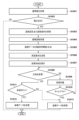
- ⁇ Terminal discrimination process> 7 is a flowchart showing an example of the procedure of the terminal discrimination process executed in the image reading device 100.
- the terminal discrimination process is executed by the terminal management application 503. This process is started when the Web server 500 receives an HTTP request including scan settings and a scan instruction from the Web browser 210 of the terminal 200 and passes the HTTP request to the terminal management application 503. As described above, the terminal discrimination process is executed in parallel with the scan process by the scan application 502.
- the terminal management application 503 (CPU 11) receives the above HTTP request from the scan application 502, thereby acquiring the scan settings and scan instructions, and proceeds to S702.
- the terminal management application 503 records the IP address of the terminal 200 acquired from the received HTTP request as the source IP address of the scan instruction, and proceeds to S703.
- the terminal management application 503 issues (generates) a session ID (linked to the source IP address) to the terminal 200.
- the scan application 502 receives a scan instruction (read instruction) via the session established with the terminal 200 (Web browser 210), and performs scanning processing according to the received scan instruction.
- the issued session ID identifies the session established with the terminal 200 (Web browser 210).
- the terminal management application 503 issues an individual URL to the terminal 200.
- the individual URL is a URL that can be accessed by the terminal 200 (Web browser 210), which is the terminal device that sent the scan instruction, and is a URL unique to this session ID (terminal 200).
- the terminal management application 503 sets the status response. Using the issued individual URL, the terminal 200 can send a status acquisition request to check status information indicating the status of the scan process being performed by the scan application 502 (e.g., scanning in progress, scan completed, or an error has occurred). When a status acquisition request is received using the individual URL, the terminal management application 503 sets the status response so that it can respond to the request.
- the terminal management application 503 notifies the terminal 200 (Web browser 210) of the access information including the individual URL issued in S703.
- the notification including the access information is sent to the terminal 200 (Web browser 210) as a response to the HTTP request received in S701.
- scanning is started here in response to the scan instruction accepted in S701, but scanning may be started when accepted in S701 and continued in parallel with the processing from S702 onwards.
- the time from the scan instruction to the start of scanning can be shortened.
- the timeout time in the timeout determination in the subsequent S708 may be extended only the first time, but even if this is not done, a timeout will not occur because the last access time will not be recorded as in the embodiment described below.
- the terminal management application 503 manages the scan settings and scan instructions received from the terminal 200 in association with the session ID generated in S703, the source IP address, and the individual URL.
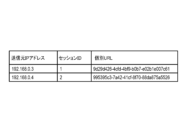
- FIG. 8 shows an example of a management table used by the terminal management application 503 to manage terminals accessing the image reading device 100.
- the management table is stored in the storage unit 13, for example. As shown in FIG. 8, the management table stores the source IP address, the session ID, and the individual URL in association with each other. Although not shown in FIG. 8, information indicating the scan settings and scan instructions may be further managed in association with these, or may be managed in association with the session ID in a separate table. In this way, when the terminal management application 503 accepts access from the terminal 200, it obtains the IP address of the terminal 200 as the source, and manages the session ID and the individual URL in association with the source IP address.
- terminal management application 503 notifies terminal 200 (Web browser 210) of access information including this individual URL.
- the data format included in the response sent to the terminal 200 may be, for example, the JSON format.
- the access information included in the response sent to the terminal 200 is expressed as ⁇ "IP_ADDRESS”: "192.168.0.3”, “SESSIONID”: "1”, "uniqueURL”: "http://192.168.0.2/scan/9d29d426-4cfd-4bf9-b0b7-e02b1e007c61/” ⁇ .
- the terminal management application 503 determines whether the terminal 200 (Web browser 210) has accessed the individual URL notified to the terminal 200 in S706.
- the terminal management application 503 checks whether the terminal 200 has accessed the individual URL at a predetermined time interval (e.g., every second). This time interval is generally referred to as a polling interval.
- the polling interval may be changeable by a user operation.
- the polling interval may be changed, for example, via an operation screen displayed on the operation unit 130 by the UI display application 501, or via a setting application that can be used in a terminal device such as the terminal 200.
- Setting data indicating the polling interval is stored in the storage unit 13.
- the terminal management app 503 proceeds to process from S707 to S709, and if there has been no access, the process proceeds to S708.
- the terminal management app 503 determines whether a timeout has occurred by checking that the timeout period has elapsed since the last access time from the terminal 200.
- the timeout time is set in advance, and the setting data is stored in the storage unit 13. If the last access time is not recorded, the terminal management application 503 may regard the current time as the last access time and treat it as if a timeout has not occurred.
- the timeout time generally depends on the settings of the Web server 500 when the browser session maintenance is lost, but it is desirable to set it to several minutes from the viewpoint of memory saving. In this embodiment, the timeout time is set to 30 minutes, which is longer than that.
- the timeout time may be changeable by a user operation. For example, the timeout time may be changed via an operation screen displayed on the operation unit 130 by the UI display application 501.
- the terminal management application 503 returns the process to S707, and if the timeout time has elapsed, the terminal management application 503 ends the process according to the procedure in FIG. 7.
- the terminal management application 503 causes the scan application 502 to end (cancel) the scan process and delete (discard) the image data of the scanned image stored in the storage unit 13. If an error occurs in the scan process by the scan application 502 and the error state is not resolved, the terminal management application 503 also ends the process according to the procedure in FIG. 7.
- the scan application 502 displays a message on the operation unit 130 indicating that the scan instruction has timed out, ends the scan process, and deletes the image data acquired by the scan process from the storage unit 13.
- the terminal management app 503 may display an error message on the operation unit 130, such as "An XX (jam, double feed, open cover, etc.) error has occurred.
- the scan operation has been canceled because no user operation was performed for a certain period of time. At this time, it is possible to instruct scanning once the error is resolved.”
- the terminal management app 503 may display an error message on the operation unit 130, such as "An XX (jam, double feed, open cover, etc.) error has occurred.
- the scan operation is continuing due to user operation. At this time, it is possible for the user currently scanning to obtain an image once the error is resolved.”
- the terminal management application 503 updates the last access time stored in the storage unit 13 to the current time in response to the access to the individual URL, and proceeds to S710.
- the terminal management application 503 determines whether or not a scan completion notification has been received from the scan application 502. If the terminal management application 503 has received a scan completion notification, the process proceeds to S711. On the other hand, if the terminal management application 503 has not received a scan completion notification, the terminal management application 503 communicates with the scan application 502 to obtain the current status of the scan process. Furthermore, the terminal management application 503 transmits status information indicating the status of the scan process to the terminal 200 (Web browser 210) in response to the HTTP request issued from the terminal 200 (Web browser 210) to the individual URL, and returns the process to S707.
- the terminal management app 503 sends status information indicating the error state to the terminal 200.
- the web browser 210 displays a message on the browser screen urging the user to resolve the error state, such as "An error occurred during scanning. Please resolve the error by following the display on the device screen.”
- the terminal management application 503 first notifies the terminal 200 of the completion of the scan process by a response to the HTTP request issued from the terminal 200 (Web browser 210) to the individual URL. Furthermore, in S712, the terminal management application 503 transmits HTML data (screen data) of the scan completion screen to the terminal 200 so that the terminal 200 (Web browser 210) can obtain image data of the read image obtained by the scan process, and ends the process.
- the scan completion screen includes a link for accessing an individual URL for downloading the image data, and the user of the terminal 200 can use the link to instruct the download of the image data.
- the terminal management application 503 may guide (i.e., redirect) the Web browser 210 to change the access destination from the individual URL for status acquisition to the individual URL for downloading in response to the completion of the scan process, and display the scan completion screen.
- the terminal management app 503 may release the management state of the terminal 200 using the management table in accordance with a specified condition. For example, when a scan instruction is received from a terminal device other than the terminal 200, the terminal management app 503 may delete the session ID and individual URL corresponding to the terminal 200 from the management table. Alternatively, when image data of a scanned image is acquired (downloaded) by the terminal 200, the terminal management app 503 may delete the session ID and individual URL corresponding to the terminal 200 from the management table. This allows the terminal management app 503 to release the management state of the terminal 200 using the management table at an appropriate time.
- the terminal management application 503 (CPU 11) receives access from a terminal device capable of communicating via a network, it generates a session ID of a session established with the terminal device and an individual URL unique to the session ID.
- the terminal management application 503 manages the session ID and the individual URL in association with each other.
- the scan application 502 performs a scan process (reading process) that reads an image of a document and generates image data of the read image according to a reading instruction received via the established session.
- the scan application 502 continues to execute the scan process while it is receiving access to the individual URL at a preset time interval (polling interval).
- the terminal management application 503 can identify (determine) the terminal device based on access to the individual URL.
- the terminal management application 503 accepts access to the individual URL after the scan process is completed (even after the session is disconnected), it provides the terminal device with an operation screen for obtaining image data of the read image. This makes it possible for the image reading device 100 to send image data of the read image to the terminal device even after the session is disconnected. This reduces the possibility that image data of the read image will be lost due to the session being disconnected, and improves user convenience.
- the session with the image reading device 100 may be disconnected, for example, by switching to a power saving mode or by changing the display screen of the web browser to another screen. Even in this case, as long as the session ID and individual URL associated with the IP address of the terminal device are held by the terminal management application 503, image data of the scanned image can be obtained by accessing the individual URL.
- the image reading device 100 stores the image data of the read image and controls access to the image data, but these functions may be performed by a server device (information processing device) external to the image reading device 100. In that case, the image reading device 100 transmits the image data obtained by the scan process to the server device, and the server device manages the received image data and controls access to the image data.
- a server device information processing device
- T1 ⁇ T2 30 minutes
- the above-mentioned notification may be executed by displaying a message on the operation unit 130 of the image reading device 100, or information capable of identifying the terminal 200 may be stored in the management table of FIG. 8, and notification may be executed using push notification, short-range wireless communication, or the like based on that information.
- the system may be configured to be able to reconnect when the disconnected terminal 200 attempts to access using the same session ID after the first timeout period T1 has elapsed. That is, when the terminal management application 503 receives an access from the terminal 200 using the same session ID after the first timeout period T1 has elapsed, the application may re-establish a session with the terminal 200 using that session ID. Furthermore, at that time, in order to reconnect, authentication information may be exchanged through additional processing (authentication processing of the terminal 200 may be performed). For example, the authentication information may be acquired and transmitted by reading a QR code (registered trademark) displayed on the operation unit 130 of the image reading device 100.
- QR code registered trademark
- the terminal management app 503 may be configured to be connectable by other terminal devices such as the terminal 300 after the first timeout period T1 has elapsed. That is, when the terminal management app 503 receives access from a terminal device other than the terminal 200 after the first timeout period T1 has elapsed, the terminal management app 503 may operate to establish a new session with the terminal device. At this time, the scan process that was being executed in response to a scan instruction from the terminal 200 may be finalized at that point, and the terminal 200 may be configured to only be able to download image data that has been acquired up to that point.
- the system constantly checks whether access to the individual URL has timed out during the scan process, but this is not limited to this.
- the system may be configured to start counting the time when the scan is completed, and discard the session when the timeout period has elapsed since the scan was completed. Even in this case, only terminals 200 that know the individual URL can access the image data from the scan, which improves user convenience while maintaining security.
- the image reading device 100 may be configured to perform a reconnection process involving authentication of the terminal 200 when it accepts access to an individual URL from the terminal 200 after the session with the terminal 200 has been disconnected. For example, when the image reading device 100 receives a reconnection request from the terminal 200 after the session has been disconnected, it requests the terminal 200 to transmit authentication information such as a passcode for authenticating the terminal 200. When the image reading device 100 receives the authentication information from the terminal 200, it performs authentication based on the received authentication information, and permits the terminal 200 to access the individual URL only if the authentication is successful.
- authentication information such as a passcode for authenticating the terminal 200.
- the request for authentication information to the terminal 200 may be made, for example, as follows:
- the image reading device 100 displays a two-dimensional code obtained by encoding a randomly generated passcode on the operation unit 130, and provides the terminal 200 with an operation screen that prompts the user to read the displayed two-dimensional code.
- the two-dimensional code is, for example, a QR Code (registered trademark).
- the user uses the camera function (photographing function) of the terminal 200 to read the two-dimensional code displayed on the operation unit 130.
- the terminal 200 transmits the passcode obtained by reading the two-dimensional code to the image reading device 100.
- the image reading device 100 permits the terminal 200 to access an individual URL that is managed in association with the IP address of the terminal 200. After access to the individual URL is permitted, the terminal 200 can resume the scan process or obtain (download) image data of the read image obtained by the scan process by accessing the individual URL as described above.
- the image reading device 100 may disconnect the session with the terminal 200 in response to a release request by the user of the terminal 300 to release the occupancy of the image reading device 100. For example, when the operation unit 130 is operated by another user, the image reading device 100 determines that a release request has been issued. Even if the session between the image reading device 100 and the terminal 200 is disconnected in response to the release request, the terminal 200 can resume the scan process or obtain (download) image data of the read image obtained by the scan process by accessing an individual URL, as in the above embodiment.
- the terminal 200 may be able to resume the scan process or obtain (download) image data of the read image obtained by the scan process by accessing an individual URL.
- the image reading device 100 reads an image of a document, saves the image data of the read image obtained in a predetermined storage location, and requests approval for retrieval of the image data from the storage location from an approved user (for example, a third party such as the operator user's superior).
- the storage location of the image data may be the storage unit 13 of the image reading device 100, or an external device (server device) that can communicate with the image reading device 100.
- the image reading device 100 controls access to the image data so that the image data can be retrieved from the storage location by the operating user who instructed the execution of the image reading process only when approval is obtained from the approved user.
- the configuration of the image reading device 100 in the second embodiment is the same as that in the first embodiment.
- the second embodiment may be combined with the first embodiment, that is, the image reading device 100 may be configured to perform the process of the first embodiment and the process of the second embodiment, or may be configured to perform only the process of the second embodiment.
- the approval method for performing the process of requesting the approval user for the above-mentioned approval is set in advance.
- the approval method may be set, for example, to a destination of the approval request, to set the contents of the data to be sent together with the approval request, and to set the approval process.
- the approval method is set in advance by a user (administrative user) who manages the operation settings of the image reading device 100.
- the administrative user can log in to the image reading device 100 using the operation unit 130 and perform setting operations on the image reading device 100.
- the setting operations are performed from an external device via a Web server 500 as described below.
- the approval method may be set at any time before the image data obtained by the image reading process is acquired (sent). For example, the approval method may be set while the image reading process is in progress, or after the image reading process is completed and before the image data is acquired.
- the approval method may also be set by a user other than the administrative user of the image reading device 100. If the setting (changes) are made by a user other than the administrative user, log information may be kept indicating who made the setting in order to prevent unauthorized settings.
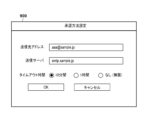
- FIG. 9 shows an example of a setting screen for setting the approval method.
- the setting screen 900 is displayed on the operation unit 130 by the CPU 11 (e.g., an approval management application (not shown) running on the Web server 500), but it may also be displayed on an external device (e.g., a terminal device such as a PC) that can communicate with the image reading device 100.
- the setting screen is displayed on the external device based on screen data (e.g., HTML data) sent from the image reading device 100, and the input contents on the setting screen are sent from the external device to the image reading device 100.
- the image reading device 100 sets the approval method according to the input contents received from the external device.
- the CPU 11 displays the setting screen 900 on the operation unit 130 in accordance with the administrative user's operation. As shown in FIG. 9, the setting screen 900 allows the destination of the approval request and the timeout period for the approval process by the approving user to be set. The CPU 11 sets the approval method in accordance with the input via the setting screen 900.
- an email address and a mail server can be set as the destination of the approval request.
- the approval request is sent using email.
- the email address used by the approval user to send and receive emails using the terminal 300 is set as the destination of the approval request.
- a mail server that can be used to send emails is set as the sending server.
- the setting screen 900 may be configured to allow multiple destinations to be set. When multiple destinations are set, for example, even if an approval user is absent and cannot perform approval processing in response to the approval request, another approval user can perform the approval processing.
- the timeout period is used to delete the image data subject to the approval process and terminate the process of waiting for approval by the approving user if approval is not given within a certain period of time after the approval request is sent.
- the timeout period can be selected from, for example, "10 minutes,” “1 hour,” and “none (infinite).” In the following, as an example, the timeout period is set to "10 minutes.”
- the CPU 11 stores setting data indicating the settings on the setting screen 900 in the storage unit 13.
- the setting data may be stored in an external device with which communication is possible via the communication I/F 15, for example. In that case, the CPU 11 obtains and uses the setting data from the external device as necessary.
- the setting items in the setting screen 900 shown in FIG. 9 are just an example, and other setting items may be present alternatively or additionally.
- a destination for sending an approval request via a general communication tool such as chat may be set as the destination.
- the setting screen 900 may accept input of only some of the information (e.g., an employee ID), and based on the input information, the remaining information (e.g., an email address corresponding to the employee ID) may be obtained from an external database.
- the setting screen 900 may also be configured to allow multiple approval methods to be set (selected).
- ⁇ Processing Procedure> 10 is a flowchart showing an example of the procedure of an image reading process executed in the image reading device 100.
- the image reading process is executed in accordance with a reading instruction transmitted to the image reading device 100 from the terminal 200 used by an operating user.
- the operating user operates the terminal 200 to launch the web browser 210, and inputs a URL (e.g., "http://192.168.0.2/") indicating the web server 500 of the image reading device 100 into the URL input field on the browser screen displayed by the web browser 210.
- a URL e.g., "http://192.168.0.2/"
- This causes the terminal 200 (web browser 210) to access the web server 500 of the image reading device 100 in order to establish communication with the web server 500.
- various methods can be used to input this URL, and it may be done by reading and decoding a two-dimensional code or text using the camera function of the terminal 200.
- the Web server 500 When the Web server 500 receives access from the terminal 200 (Web browser 210), it starts the process according to the procedure in FIG. 10. At S1001, the Web server 500 establishes communication with the terminal 200 in response to the access from the terminal 200.
- the communication between the image reading device 100 (Web server 500) and the terminal 200 is performed using, for example, the HTTP protocol. Note that the communication between the image reading device 100 and the terminal 200 may be realized using an application other than the Web server 500 of the image reading device 100 and the Web browser 210 of the terminal 200.
- the Web server 500 determines whether or not the establishment of communication (connection) with the terminal 200 has been successful. If the Web server 500 has failed to establish communication with the terminal 200, it ends the process according to the procedure in FIG. 10, and if the establishment of communication with the terminal 200 has been successful, it proceeds to S1003.
- the operating user can use the terminal 200 to configure settings related to image reading.
- the Web browser 210 of the terminal 200 displays, for example, a scan setting screen 600 (FIG. 6) as a Web browser screen on the display unit of the terminal 200 based on HTML data (screen data) acquired from the Web server 500.
- the scan setting screen 600 as an example, the color mode and resolution for image reading can be set.
- the operating user inputs reading settings using the operation unit (e.g., a touch panel) of the terminal 200.
- the Web browser 210 of the terminal 200 transmits the reading settings and reading instructions to the image reading device 100 (Web server 500).
- the Web server 500 receives the reading settings and reading instructions from the terminal 200.
- the scan application 502 running on the web server 500 starts executing the image reading process according to the received reading settings and reading instructions.
- the scan application 502 controls the image reading process so that the documents set on the platen 102 are transported one by one in sequence and the image reading unit 104 reads the images of the documents.
- the image reading process continues until all the documents set on the platen 102 are gone. Note that a set number of documents may be set as the reading target, or the number of documents to be read may be set in the reading settings received from the terminal 200.
- the scan application 502 saves the image data generated by the image reading unit 104 in the storage unit 13, which is set in advance as the saving destination.
- the web server 500 advances the process to S1005.
- the processes of S1005 to S1013 can be executed by an approval management application (not shown) running on the Web server 500.
- This process transmits an approval request for retrieval of image data of the scanned image from the storage unit 13 to the approved user, and when the retrieval of the image data is approved by the approved user, performs access control that allows the operating user to retrieve the image data.
- the CPU 11 generates confirmation information for the image data to be included in the approval request and sent.
- the confirmation information for the image data includes information for enabling the approved user to confirm the image data of the read image stored in the storage unit 13.
- the confirmation information includes a link to an operation screen (URL) on which the image data stored in the storage unit 13 (storage destination) can be confirmed.
- the CPU 11 accepts an access using the link, it provides an operation screen to the terminal device (terminal 300) from which the access originates.
- the CPU 11 accepts an operation indicating approval or prohibition of acquisition of the image data of the read image via the operation screen displayed on the terminal device (terminal 300).
- the storage unit 13 in the image reading device 100 is used as the storage destination for the image data, but this is not limited to this.
- the image data may be configured to be stored in a cloud server that can be accessed via a network such as the Internet to which the image reading device 100 is connected.
- the same location on the same cloud server may be set as the access destination of the terminal 300 in the approval process, or another location may be set.
- the image reading device 100 can store simplified data for confirmation, such as a thumbnail of the image data, in the memory unit 13.
- the CPU 11 sends an approval request for obtaining image data of the scanned image from the storage unit 13, including confirmation information, by e-mail to a preset destination.
- the CPU 11 refers to the setting data stored in the storage unit 13, and sends an e-mail including the approval request to the preset e-mail address via the preset mail server (transmission server).
- the e-mail sent in S1006 is received by the terminal 300 used by the approved user, as described later, and approval processing is performed according to the approval request.
- the CPU 11 saves the sending time of the approval request in the storage unit 13, and proceeds to S1008. This sending time is used in the timeout judgment in S1010, which will be described later.
- e-mail is described as an example of a method for sending an approval request, but this is not limited thereto, and any means capable of notifying the terminal 300 or the approved user that an approval request has been made can be used.
- the CPU 11 determines whether or not a response (approval instruction/prohibition instruction) to the approval request sent by email in S1006 has been received. If the CPU 11 has not yet received a response, the CPU 11 proceeds to S1009 and waits for a predetermined period of time until a response is received. Thereafter, the CPU 11 proceeds to S1010.
- the CPU 11 determines whether or not a preset timeout period has elapsed since the timing of sending the approval request (a timeout has occurred in the approval process) based on the sending time saved in S1007.
- the timeout period is acquired by referencing the setting data saved in the memory unit 13. If the timeout period has not elapsed, the CPU 11 returns to S1008 and waits again until a response is received. On the other hand, if the timeout period has elapsed, the CPU 11 advances the process to S1013.
- the CPU 11 deletes (discards) the image data of the read image from the storage unit 13 (storage destination) and ends the process according to the procedure in FIG. 10.
- the CPU 11 may provide the terminal 200 with a web browser screen including a message indicating that a timeout has occurred in the approval process and that the image data of the read image has been deleted.
- the web browser 210 of the terminal 200 may notify the operating user of the above message by obtaining screen data (HTML data) from the web server 500 and displaying the screen. This timeout process makes it possible to prevent the image data from remaining in the storage destination unless a response to the approval request is received (approval is not obtained from the approving user).
- the process proceeds to S1011.
- the response is received over the network from the terminal 300 used by the approved user.
- the CPU 11 determines, based on the received response, whether the acquisition (transmission) of image data of the scanned image from the memory unit 13 has been approved by the approved user.
- the response to the approval request includes an approval instruction or a prohibition instruction.
- An approval instruction indicates that the acquisition of image data is approved.
- a prohibition instruction indicates that the acquisition of image data is prohibited.
- the CPU 11 advances the process to S1013.
- the CPU 11 deletes (discards) the image data of the scanned image from the storage unit 13 (storage destination) and ends the process according to the procedure in FIG. 10.
- the CPU 11 may provide the terminal 200 with a Web browser screen including a message indicating that the acquisition of image data has not been approved by the approved user (the approval request has been rejected).
- the Web browser 210 of the terminal 200 may notify the operating user of the above message by acquiring screen data (HTML data) from the Web server 500 and displaying the screen.
- the CPU 11 proceeds to S1012.
- the CPU 11 controls access to the image data of the scanned image stored in the memory unit 13 so that the image data can be acquired.
- the CPU 11 provides the operating user's terminal 200 with an operation screen for downloading the image data from the memory unit 13 (storage destination), thereby enabling the operating user to acquire the image data.
- the Web browser 210 of the terminal 200 obtains screen data (HTML data) from the Web server 500, displays an operation screen, and accepts operations by the operating user.
- the Web browser 210 accesses the URL of the linked destination.
- the Web server 500 transmits the image data stored in the storage unit 13 to the terminal 200.
- the Web browser 210 can display a read image corresponding to the image data downloaded from the image reading device 100 (Web server 500) in this way on the Web browser screen.
- the CPU 11 ends the processing according to the procedure in FIG. 10.
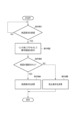
- FIG. 11 is a flowchart showing an example of the procedure of approval processing executed in the terminal 300 in accordance with an operation by an approving user.
- the terminal 300 launches an email application installed on the terminal 300 in accordance with the operation of the approving user, and receives an email including an approval request via the launched email application.
- the terminal 300 receives the email including the approval request, it proceeds to S1102.
- the terminal 300 accesses the link destination according to the operation of the approved user for the link included in the email.
- the terminal 300 displays an operation screen on the display unit for accepting an operation indicating approval or prohibition of acquisition of the target image data for the approval process (image data of the read image stored in the storage unit 13 of the image reading device 100).
- the image reading device 100 (CPU 11) accepts an operation by the approved user indicating approval or prohibition of acquisition of the image data via the operation screen thus provided to the terminal 300.
- the link destination may be accessed using, for example, a web browser installed on the terminal 300. In that case, it is preferable to configure the web browser to be launched from the email application.
- FIG. 12 shows an example of an operation screen for approval processing (operation screens 1200 and 1210) displayed as a web browser screen on the terminal 300.
- the web browser of the terminal 300 acquires screen data (HTML data) corresponding to the operation screen 1200 from the web server 500 of the image reading device 100, and displays the operation screen 1200 as a web browser screen.
- This operation screen 1200 is configured to display thumbnail images of each of the multiple read images obtained by reading multiple documents.
- the operation screen 1200 further includes an approval button for approving the acquisition of image data of the read images, and a prohibition button for prohibiting the acquisition.
- This operation screen 1200 can be modified in various ways, and may include, for example, information for identifying the operating user. In that case, such information is included in the approval request received from the image reading device 100. Also, it may be set in the reading settings to send the target image data to a set destination, and in that case, this operation screen 1200 may include information for identifying the destination.
- the approving user checks the thumbnail images displayed on the web browser screen and operates the approve or forbid button. This indicates whether to approve or forbid the operating user from acquiring the image data of the scanned images corresponding to those thumbnail images.
- the operation screen for approval processing may be configured, for example, as operation screen 1210 in FIG. 12.
- Operation screen 1210 is configured to switch between and display multiple scanned images one by one in accordance with the operation of the approving user.
- On operation screen 1200 the approving user can check multiple scanned images that are the subject of the approval processing all at once, while on operation screen 1210, the approving user can check individual scanned images that are enlarged. Note that it may be possible to switch between operation screen 1200 and operation screen 1210 in accordance with the operation of the approving user.
- the terminal 300 After displaying the operation screen in S1102, if the acquisition of the target image data is approved by the approved user by operating the approval button, the terminal 300 proceeds to S1104. In S1104, the terminal 300 closes the operation screen for approval processing, transmits a response including an approval instruction to the image reading device 100 as a response to the received approval request, and ends the processing according to the procedure in FIG. 11.
- the terminal 300 proceeds to S1105.
- the terminal 300 closes the operation screen for approval processing, sends a response including a prohibition instruction to the image reading device 100 as a response to the received approval request, and ends the processing according to the procedure in FIG. 11.
- the response to the approval request is sent using, for example, the HTTP protocol, but other methods (for example, sending using email) may also be used.
- a general communication tool such as chat may be used to confirm the target image data using the link included in the approval request, and the approving user may operate it.
- the functions of such a tool may be used to receive the link and the target image data, and to send a reply (response) including an approval instruction or a prohibition instruction.
- the image reading unit 104 reads an image of a document and generates image data of the read image.
- the CPU 11 (scan application 502) saves the image data generated by the image reading unit 104 in a predetermined storage destination (memory unit 13).
- the CPU 11 (approval management application) transmits an approval request for obtaining the image data stored in the storage destination, the approval request including confirmation information for the image data, to the approved user.
- the CPU 11 receives a response to the approval request indicating that the acquisition of the image data has been approved by the approved user, the CPU 11 controls access to the image data so that the image data can be obtained from an external device such as the terminal 200.
- an approved user can check the image data of a read image with simple operations and give approval for the acquisition of that image data.
- This allows approval processing for the acquisition of image data of a read image to be realized without increasing the burden on the approved user.
- image data can be acquired according to approval by an approved user who has checked the image data, it is possible to more efficiently prevent information leakage (leakage of confidential information) due to the acquisition of image data.
- approval processing by an approved user it is possible to more accurately identify confidential information and prevent the leakage of identified confidential information compared to when the image data of a read image (confidential information) is mechanically determined.
- the CPU 11 (approval management application) links the operating user with the approving user and performs session management for processes such as sending approval requests to the approving users, receiving responses to the approval requests, and sending image data to the operating user. For example, consider a case where, after an image reading process is performed according to the operation of a certain operating user, another operating user causes the image reading device 100 to perform an image reading process before the approval process is completed by the approving user. In this case, two approval requests corresponding to individual operating users will be sent to the approving user, but the above-mentioned session management makes it possible to appropriately manage the approval processes based on each approval request and the acquisition of image data based on the results of the approval processes.
- the confirmation information included in the approval request may include a thumbnail image of a scanned image corresponding to the image data stored in the storage destination (storage unit 13).
- the confirmation information may include the scanned image itself corresponding to the image data stored in the storage destination (storage unit 13).
- the CPU 11 may receive a reply email to the approval request (email) as a response indicating an approval instruction.
- the approving user can confirm the target image data without having to access the link destination, and can issue an approval instruction by simply sending a reply email.
- the confirmation information need not necessarily include a link to the save destination of the target image data, but may include information that allows confirmation of information corresponding to the target image data.
- a thumbnail or other information of the target image data may be stored in a location different from the save destination of the target image data, and a link to that location may be included as confirmation information.
- processing (approval management and access control) of the image data of the scanned image stored in the storage destination may be performed by a device other than the image reading device 100 (for example, an information processing device such as a server device).
- the image reading device 100 determines the destination of image data of a read image obtained by reading an image of a document according to a predetermined switching condition, and transmits the image data to the destination according to a transmission method corresponding to the determined destination.
- the configuration of the image reading device 100 in the third embodiment is similar to that of the first embodiment.
- the third embodiment may be combined with the first embodiment, that is, the image reading device 100 may be configured to perform the processing of the first embodiment and the processing of the third embodiment, or may be configured to perform only the processing of the third embodiment.
- the image reading device 100 is configured in advance to set a transmission method for transmitting image data of a read image obtained by reading an image of a document.
- the transmission method can be configured in advance by a user (administrative user) who manages the operation settings of the image reading device 100.
- the administrative user can log in to the image reading device 100 using the operation unit 130 and perform setting operations for the image reading device 100.
- the transmission method may be set at any time before acquiring (transmitting) the image data obtained by the image reading process. For example, it may be set while the image reading process is in progress, or it may be set after the image reading process is completed and before the image data is transmitted.
- the transmission method may also be set by a user other than the administrative user of the image reading device 100.
- the initial setting may be set by the administrative user, and subsequent settings may be set by another user (for example, a user corresponding to the set destination). If the setting is (changed) by a user other than the administrative user, log information on who set the setting may be kept to prevent unauthorized setting.
- FIG. 13 shows an example of a setting screen for setting the transmission method.
- the setting screen 1300 is displayed on the operation unit 130 by the CPU 11 (e.g., a transmission determination application (not shown) running on the Web server 500), but it may also be displayed on an external device (e.g., a terminal device such as a PC) that can communicate with the image reading device 100.
- the setting screen is displayed on the external device based on screen data (e.g., HTML data) sent from the image reading device 100, and the input contents on the setting screen are sent from the external device to the image reading device 100.
- the CPU 11 sets the setting method according to the input contents received from the external device.
- a plurality of transmission methods for transmitting image data of the scanned image corresponding to a plurality of destinations and a switching condition for switching the destination among the plurality of destinations according to the amount of image data are set.
- the setting of the transmission method includes, for example, the setting of the communication protocol and the communication path used for transmitting the image data.
- two destinations, a first destination and a second destination can be set.
- the first destination is set to be the operating user who operates the image forming apparatus 100 (so that the image data is transmitted to the terminal 200 of the operating user).
- the second destination is set as a destination different from the first destination, so that the image data is transmitted to a user other than the operating user who checks the scanned image.
- the user who checks the scanned image is a third party other than the operating user, and can be, for example, the superior of the operating user.
- a transmission method via a web browser or a transmission method using e-mail can be selected as a transmission method corresponding to the first destination.
- the transmission method via a web browser can be, for example, a method of transmitting image data according to a download instruction using a link for accessing a URL for downloading image data, which is transmitted from the web browser 210 of the terminal 200, or a method of transmitting image data as a response to a status acquisition request for checking the status of the scan process, which is transmitted from the web browser 210.
- the setting screen 1300 for the transmission method via a web browser, it is possible to select whether to use a standard protocol (HTTP) or to use HTTPS, which is a protocol with higher security than HTTP, as a communication protocol to be used for transmission.
- HTTP standard protocol
- HTTPS HTTPS
- e-mail it is possible to set an e-mail address as the destination and a mail server as the communication path.
- the transmission method for the first destination is set to be via a web browser, and the communication protocol is set to not use HTTPS (use HTTP).
- the transmission method corresponding to the second destination it is possible to select a transmission method using e-mail or a transmission method for transmitting image data to a server device (data server).
- a server device data server
- For the transmission method using e-mail it is possible to set an e-mail address as the destination and a mail server as the communication path.
- the transmission method for transmitting image data to the data server it is possible to set an address indicating the storage destination of the image data on the data server, and a communication protocol and communication path to be used for transmission.
- As the communication protocol it is possible to select a standard protocol (FTP) or FTPS, which is a protocol with higher security than FTP.
- FTP Standard protocol
- FTPS a protocol with higher security than FTP.
- As the communication path it is possible to select a path for transmitting directly to the data server or a path using a VPN (Virtual Private Network).
- a transmission method using e-mail is selected as the transmission method setting corresponding to the second destination, and an e-mail address and mail server to be used with this transmission method are set.
- an e-mail address used by a third party other than the operating user (who checks the image data of the scanned image) to send and receive e-mails using terminal 300 is set as the destination. By sending image data via e-mail addressed to the set e-mail address, it is possible for the terminal 300 to receive the image data (and thereby for the third party to check the scanned image).
- setting items for the first and second destinations on the setting screen 1300 are just examples, and other setting items may be present alternatively or additionally.
- a transmission method in which a shared folder is used as the destination may be selectable.
- other communication protocols such as SFTP or HTTPS may be selectable as the communication protocol used for the transmission method of transmitting image data to the data server.
- a transfer server to which the image data is transferred may be specified as the communication path.
- the setting screen 1300 may display only the minimum number of setting items, and the remaining information (for example, an email address corresponding to an employee ID) may be obtained from an external database based on the input information.
- a switching condition for switching from a first destination to a second destination can be set as a switching condition for the destination when transmitting image data of a read image.
- the switching condition is set so that the destination of the image data is switched from the first destination to the second destination depending on whether the data amount of the image data of the read image is equal to or greater than a threshold data amount.
- the data size of the image data or the number of scanned originals (images) can be selected as a criterion for switching the destination.
- a period to be determined and a threshold data size or a threshold number of originals can be set for the switching condition for switching the destination based on the data size of the image data or the number of originals.
- the destination is switched from the first to the second. Also, when the number of original documents is used as the criterion, if the total number of original documents scanned during the determination period exceeds the threshold number of original documents, the destination is switched from the first to the second.
- the determination period can be set to, for example, the period of one scan process, the past hour, or the past day (that day).
- switching conditions are merely examples, and any condition that can determine that image reading processing has been performed on a large number of documents can be set as a switching condition.
- the number of characters extracted from the image data of the read image by OCR (Optical Character Recognition) processing may be used as a switching condition.
- the period to be determined may be set based on the number of times the scan processing is performed.
- a switching condition is set for switching the destination based on the data size. Specifically, a switching condition is set for switching the destination from the first destination to the second destination when it is determined that the size of the image data of the scanned image obtained by one scan process is equal to or larger than the threshold data size of 10 MB.
- the transmission judgment application 503 (CPU 11) stores the setting data indicating the settings on the setting screen 1300 in the storage unit 13.
- the setting data may be stored in, for example, an external device with which communication is possible via the communication I/F 15. In that case, the CPU 11 obtains and uses the setting data from the external device as necessary.
- ⁇ Processing Procedure> 14 is a flowchart showing an example of the procedure of an image reading process executed in the image reading device 100.
- the image reading process is executed in accordance with a reading instruction (a reading start request) transmitted to the image reading device 100 from the terminal 200 used by an operating user.
- the operating user operates the terminal 200 to start the web browser 210, and accesses the URL indicating the web server 500 of the image reading device 100 using the web browser 210.
- the CPU 11 web server 500
- the CPU 11 accepts access from the terminal 200 (web browser 210), it starts the process according to the procedure in FIG. 14.
- the CPU 11 establishes communication with the terminal 200 in response to an access from the terminal 200.
- the communication between the image reading device 100 (Web server 500) and the terminal 200 is performed using, for example, the HTTP protocol.
- the communication between the image reading device 100 and the terminal 200 may be realized using an application other than the Web server 500 of the image reading device 100 and the Web browser 210 of the terminal 200.
- the CPU 11 may establish communication with the terminal 200 by sending a predetermined command via the USB connection.
- the Web browser 210 of the terminal 200 is not used to establish communication between the image reading device 100 and the terminal 200, only the transmission method using e-mail can be used as the transmission method corresponding to the above-mentioned first destination.
- the operating user can configure settings related to image reading using the setting screen 600 (FIG. 6) provided to the terminal 200 by the image reading device 100.
- the Web browser 210 of the terminal 200 transmits the reading settings and a reading instruction to the image reading device 100 (Web server 500).
- the image reading device 100 receives the reading settings and a reading instruction from the terminal 200.
- the CPU 11 (scan application 502 running on the Web server 500) starts executing the image reading process (scanning process) according to the received reading settings and reading instructions.
- the CPU 11 controls the image reading process so that the documents set on the document tray 102 are transported one by one in sequence and the image reading unit 104 reads the images of the documents. The image reading process continues until all documents set on the document tray 102 are gone. Note that a set number of documents may be set as the reading target, or the number of documents to be read may be set in the reading settings received from the terminal 200.
- the CPU 11 completes the image reading process, it saves the image data generated by the image reading unit 104 in the storage unit 13, which is set in advance as the saving destination.
- the CPU 11 advances the process to S1404.
- the CPU 11 stores information about the image data of the scanned image (scanned image information) in the storage unit 13 for the destination determination process described below.
- FIG. 15 shows an example of the scanned image information stored in S1404.
- the scanned image information includes, as an example, the date and time when the scan process was performed, the size of the image data obtained by the scan process, and the number of documents scanned (the number of scanned images obtained).
- the scanned image information is stored (added) to a list held in the storage unit 13. Note that old information that is outside the determination target period set using the setting screen 1300 may be deleted from the list. Alternatively, the timing of deletion from the list (for example, one month or one year after storage) may be set regardless of the determination target period.
- the CPU 11 transmits to the setting data stored in the storage unit 13, which indicates the settings of multiple transmission methods for transmitting image data and the settings of destination switching conditions.
- This setting data is generated in advance by settings using the setting screen 1300 and is stored in the storage unit 13.
- the CPU 11 performs processing to determine the destination (transmission method) of the image data of the scanned image using the settings indicated by the setting data, following the procedure shown in FIG. 16.
- the CPU 11 (Web server 500) transmits the image data to the determined destination by transmitting the image data according to the settings of the transmission method corresponding to the determined destination.
- the CPU 11 when sending image data to a first destination, the CPU 11 sends the image data according to the settings of the transmission method corresponding to the first destination on the setting screen 1300. For example, when the method of sending via a web browser is set, the CPU 11 sends the image data to the web browser 210 of the terminal 200 using either HTTP or HTTPS as the set communication protocol. When the method of sending using email is used, the CPU 11 attaches the image data to an email addressed to a set email address via a set mail server, and sends the image data.
- the CPU 11 When transmitting image data to a second destination, the CPU 11 transmits the image data according to the setting of the transmission method corresponding to the second destination on the setting screen 1300. For example, in the case of a transmission method using e-mail, the CPU 11 transmits the image data by attaching the image data to an e-mail addressed to a set e-mail address via a set mail server. In the case of a transmission method for transmitting image data to a server device (data server), the image data is transmitted to the address of the set data server. At that time, the CPU 11 transmits the image data using a communication protocol set among FTP and FTPS. In addition, when a route using a VPN is set as a communication route, the image data is transmitted via the VPN.
- setting information such as a VPN server address required for transmission via the VPN is stored in the storage unit 13 in advance.
- the image reading device 100 when the image reading device 100 (Web server 500) receives a status acquisition request from the terminal 200 (Web browser 210) after transmitting image data to the second destination, the image reading device 100 transmits a response including, for example, a specific character string as status information.
- This status information indicates that the image data has been transmitted to the second destination (a destination other than the first destination).
- the terminal 200 (Web browser 210) recognizes that the image data has been transmitted to the second destination and displays the setting screen 600 for reading settings as a Web browser screen. Alternatively, it displays a screen (not shown) indicating that the image data has been transmitted to the second destination as a Web browser screen.
- FIG. 16 is a flowchart showing an example of the procedure of the process (S1405) for determining the transmission destination of the image data of the scanned image.
- the CPU 11 (transmission determination application 503) obtains the period (determination period) to be determined for the set switching condition from the setting data stored in the storage unit 13. Then, in S1602, the CPU 11 determines whether or not to use the data size of the image data of the read image in determining the switching condition. If it is set to use the data size, the CPU 11 advances the process to S1603, and if it is set not to use the data size (to use the number of pages of the document that have been read), the CPU 11 advances the process to S1605.
- the CPU 11 calculates the total data size of the image data acquired during the determination period based on the determination period acquired in S1601 and the read image information stored in the storage unit 13 in S1404. For example, if the determination period is set to the period of one scan process, the size of the image data acquired in the most recent scan process is acquired. Next, in S1604, the CPU 11 acquires the set threshold data size (10 MB in the example of FIG. 13) as the threshold used to determine the switching condition, and proceeds to S1607.
- the CPU 11 determines whether the total data size (calculated value) corresponding to the determination period is equal to or greater than the threshold data size. If the total data size is equal to or greater than the threshold data size, the CPU 11 advances the process to S1608, determines the second destination as the destination for the image data of the scanned image, and ends the process. On the other hand, if the total data size is not equal to or greater than the threshold data size, the CPU 11 advances the process to S1609, determines the first destination as the destination for the image data of the scanned image, and ends the process.
- the size of the image data acquired in the most recent scan process is 13.5 MB
- the threshold data size is 10 MB, so it is determined that the total data size (calculated value) is equal to or greater than the threshold data size.
- the second destination is determined as the destination for the image data of the scanned image.
- the CPU 11 calculates the total number of documents scanned during the determination period (the number of obtained read images) based on the determination period acquired in S1601 and the read image information stored in the storage unit 13 in S1404. Next, in S1604, the CPU 11 acquires the set threshold document number (100 in the example of FIG. 13) as a threshold used for determining the switching condition, and proceeds to S1607.
- CPU 11 determines whether the total number of originals corresponding to the determination period (calculated value) is equal to or greater than the threshold number of originals. If the total number of originals is equal to or greater than the threshold number of originals, CPU 11 advances the process to S1608, determines the second destination as the destination of the image data of the scanned image, and ends the process. On the other hand, if the total number of originals is not equal to or greater than the threshold number of originals, CPU 11 advances the process to S1609, determines the first destination as the destination of the image data of the scanned image, and ends the process.
- the CPU 11 sets multiple transmission methods for transmitting image data, each corresponding to a multiple destination.
- the image reading unit 104 reads an image of a document and generates image data of the read image.
- the CPU 11 determines the destination of the image data from among the multiple destinations in accordance with a switching condition for switching the destination depending on the amount of image data generated by the image reading unit 104.
- the CPU 11 transmits the image data generated by the image reading unit 104 to the destination in accordance with the transmission method corresponding to the determined destination.
- the multiple transmission destinations may include a first transmission destination and a second transmission destination.
- the first transmission destination is (a terminal device accessible by) the operating user who operates the image reading device 100.
- the second transmission destination is (a terminal device accessible by) a user other than the operating user who checks the read image.
- the switching condition is defined as a condition for switching the transmission destination of the image data from the first transmission destination to the second transmission destination depending on the amount of image data of the read image.
- the superior of the operating user (set as the first destination) is set as the second destination, the image data of the scanned image will be sent to the superior as necessary, according to the destination switching conditions.
- the superior can check the scanned image and, if there are no problems, transfer the image data to the operating user, or, if there are problems, discard the image data without transferring it. In this way, it is possible to efficiently prevent the leakage of confidential information due to the transmission of image data of the scanned image.
- the scanned image is directly confirmed by the superior.
- the image data of the scanned image is confirmed mechanically (for example, by a specified image processing)
- by setting the switching conditions it is possible to control the image data to be sent to the superior only when a large amount of documents have been scanned. In this way, in cases where it is expected that the leakage of a large amount of confidential information will not occur, the image data will not reach the superior, and it is possible to prevent an unnecessary increase in the effort of confirming the scanned image.
- a destination and a corresponding transmission method e.g., a transmission method via a web browser
- the input field for the transmission method that corresponds to the first destination does not need to be displayed on the setting screen 1300.
- multiple destinations may be set as destinations other than the first destination corresponding to the operating user.
- multiple threshold data sizes may be set so that switching between the second destination and the third destination is performed depending on the data size.
- the third destination may be determined as the destination of the image data when the total data size of the image data is 50 MB or more
- the second destination may be determined when the total data size is less than 50 MB and 10 MB or more.
- control that requires confirmation of the scanned image by a higher-ranking person becomes possible.
- a link for accessing the image data (a link to the URL of the location where the image data is stored) may be sent to the second destination so that the image data can be obtained (viewed) from the second destination without sending the image data to the second destination.
- the present embodiment has been described as a mode in which image data is directly transmitted from the image reading device 100 to the first and second destinations, this is not limited to this.
- the image data may be transmitted from the image reading device 100 to a specified external storage such as a cloud server, and the image data may then be transmitted from there to the first or second destination.
- a link for the second destination to access the image data may be transmitted from the image reading device 100.
- [Fourth embodiment] In the fourth embodiment, an example will be described in which scan settings and scan instructions from the terminal 200 to the image reading device 100 are more easily realized.
- the configuration of the image reading device 100 in the fourth embodiment is similar to that of the first embodiment.
- the fourth embodiment may be combined with the first embodiment, that is, the image reading device 100 may be configured to perform the processing of the first embodiment and the processing of the fourth embodiment, or may be configured to perform only the processing of the fourth embodiment.
- the web browser 210 of the terminal 200 displays the initial screen (login screen 1700) shown in FIG. 17A as the web browser screen.
- a title display section 1701 and a URL display section 1702 are provided.
- Also arranged on the login screen 1700 are an edit box 1703 for entering a login name, an edit box 1704 for entering a password, and a login button 1705. Pressing the exit button 1706 in the upper right corner of the screen ends the display of the login screen 1700.
- Web server 500 checks the login name and password. If these are correct, scan setting screen 1710 shown in FIG. 17B, which allows scan settings, is returned as a response. If the login name and password are incorrect, an error dialog (not shown) that says "Incorrect user name or password" is displayed, and login screen 1700 remains.
- the scan settings can be selected from various items.
- Items selectable as scan settings in the scan settings screen 1710 include a color mode selection menu (options: color, gray, black and white), a resolution selection menu (options: 100 DPI, 300 DPI), a paper size selection menu (options: A4, letter), a reading side selection menu (options: single-sided, double-sided), and a file format selection menu (options: PDF, JPEG). All options are displayed in combo boxes such as pull-down menus.
- the scan application 502 After selecting the scan settings, the user presses the scan button 1711, and the scan application 502 starts scanning.
- the scanned image obtained by the scan is displayed on a screen (not shown) for downloading the scanned image displayed by the web browser 210, and is downloaded to the terminal 200 through the web browser 210.
- the scanned image is sent to a destination specified on the download screen or another screen.
- the job registration screen 1720 has an input edit box 1721 for the job number, an input edit box 1722 for the destination to which the scanned image is sent from the image reading device 100, and input edit boxes 1723 and 1724 for the user name and password to access the destination.
- the settings entered into the input edit boxes 1722 to 1724 correspond to the destination settings. Any number (for example, 1 to 99) can be entered as the job number.
- the register button 1725 the image reading device 100 stores the scan settings set on the scan setting screen 1710 and the destination settings set on the job registration screen 1720 together in association with the job number.
- the delete button 1726 is pressed, the job registered as the target job number is deleted.
- This job registration can also be performed from other information processing devices connected to the image reading device 100 via USB or a network. Regardless of the registration method used, when a job number is specified on the job registration screen in FIG. 17C, the job setting information stored in association with the target job number may be displayed. In this case, a button for checking the scan settings may be provided.
- the favorites registration screen (FIG. 19) is displayed.
- the favorites registration screen will be described later.
- the scanning application 502 is started by the Web server 500 and is in standby (S1801). When it receives a scanning command, it subsequently or simultaneously receives scanning settings (S1802).
- a preparatory operation for starting scanning is performed.
- information for creating an image such as shading data and background data, is obtained (S1803).
- scanning is started (S1804).
- scanning is started, first it is confirmed whether there is an original on the platen 102 (S1805). If there is an original (Yes in S1805), scanning is performed (S1806). During scanning, it is confirmed whether an error such as a double feed has occurred (S1807). If an error has occurred (Yes in S1807), the error is notified (S1808) and processing ends. If no error has occurred in S1807 (No in S1807), the image is transmitted (S1810).
- transmitting an image includes, for example, displaying a download screen that displays the scanned image and allows it to be downloaded. If the original is removed from the platen 102 (No in S1805), an error indicating that there is no original is notified (S1808) and processing ends.
- the image reading device 100 of this embodiment further includes a job application 504 in addition to the scan application 502 and the like.
- the job application 504 is executed when the UI display application 501 receives a scan start command through a user operation.
- the scan application 502 and the job application 504 control the image reading device 100 via the scanner driver.
- the UI display application 501 launches the scan application 502 and acquires an image from the scan application 502.
- the UI display application 501 launches the job application 504 with the acquired image as an argument.
- the job application 504 transmits the image according to the transmission settings.
- the image is transmitted to a shared folder of a PC on the network using the SMB protocol.
- transmission may be performed using FTP, SMTP, or an equivalent communication protocol.
- the UI display application 501 launching another application is merely an example, and each application may be launched by any application or process.
- FIG. 19 shows a favorite scan screen (screen 1900) displayed by the web browser 210 when the "Add to favorites" button 1713 in FIG. 17B is pressed.
- This screen 1900 displays a list 1911 of scan settings. Note that this list 1911 may display only a portion of the scan settings. Also, at the bottom of screen 1900, an explanation 1912 is displayed saying "Please add this screen to your browser's favorites. When you select a favorite, scanning will start and you will be able to obtain an image.” This indicates that direct scanning can be performed by adding the screen 1900 to the favorites list of the web browser 210, and prompts the user to add this screen 1900 to the favorites list of the web browser 210. Pressing the back button 1913 returns to the scan settings screen 1710 in FIG. 17B.
- Title display section 1901 of screen 1900 displays "Color/100 dpi/A4/Double-sided/PDF.” This is the content of the HTML ⁇ title> tag.
- the URL displayed in URL display section 1902 is generated so that the part following the IP address of image reading device 100 is a unique string, starting with "favorite.”
- a download screen for obtaining the scanned image through web browser 210 is displayed. In other words, when the "Add to favorites" button 1713 in FIG.
- the image reading device 100 generates the URL shown in FIG. 19 and returns this screen 1900 when accessed for the first time from the web browser 210. Furthermore, when the image reading device 100 subsequently accesses this URL, it executes the image reading operation according to the scan settings included in this URL, but does not return screen 1900 to the web browser 210, and returns the URL of the download screen for the image read at this time to the web browser 210. Note that when accessing the URL shown in FIG. 19 for the second or subsequent times, a scanning screen (for example, a "scanning" display and the number of scanned sheets are displayed while being updated each time) may be returned to the web browser 210 until the reading operation is completed. After that, the process proceeds to S1805 in FIG. 18, and the subsequent processing may be executed.
- a scanning screen for example, a "scanning" display and the number of scanned sheets are displayed while being updated each time
- the image reading device 100 and in particular the web server 500, functions as a URL generator, but this is not limited to this and the URL may be generated by other configurations.
- the URL generation process is performed by the Web server 500.
- the Web server 500 creates a character string that lists the scan settings ("color/100dpi/A4/duplex/PDF" in the example of FIG. 19). It then arranges the login name and password, and adds the hashed character string to the end of the character string "color/100dpi/A4/duplex/PDF". The entire obtained character string is then Base64 encoded. The encoded character string is then concatenated to the URL after "favorite” to complete the character string "http://192.168.0.10/favorite/.".
- the above-mentioned steps are reversed.
- the hashed login name and password are then retrieved.
- the login name and password stored in the image reading device 100 are hashed, and an authentication check is performed using these and the hashed login name and password retrieved from the URL. If no errors are found in the authentication check, the scan settings are retrieved from the URL. If an error occurs in the authentication check, the user is notified of the error via the operation unit 130 (not shown).
- the URL may be generated without using a login name or password, or may use the time or any device information.
- the URL may contain only unique identification information, and by linking the identification information to the scan settings stored in the image reading device 100, a scan may be performed using the corresponding scan settings when the URL is accessed.
- the Web server 500 returns a response with an HTTP response code of "301" and Location in the header.
- the newly created URL is entered in Location.
- the Web browser 210 that receives the response performs a redirect by confirming the HTTP response code "301".
- the redirect destination is the URL written in the Location in the header. After that, the screen 1900 in FIG. 19 is displayed.
- the Web server 500 receives a request for the generated URL (S2001)
- the scan application 502 is launched and scanning is performed (S2004). If the scan is completed normally (No in S2005), the scanned image is sent to the Web browser 210 (S2006) and processing ends. If an error occurs during scanning (Yes in S2005), the details of the error are displayed and a screen with a scan button to enable rescanning is returned to the Web browser 210 (S2007), and processing ends.
- the user can register scan settings in the favorites of the web browser 210.
- the user simply selects a favorite registered in the web browser 210 and the image reading device 100 can start scanning and acquire an image, so there are fewer steps to start scanning and acquire an image, reducing the amount of work.
- a shortcut icon that allows direct access to a URL is placed on the desktop, for example, scanning can be started and an image can be acquired simply by clicking the icon, further reducing the amount of work.
- pressing the scan button 1711 can start scanning with the scan settings set on this screen, and pressing the "Add to favorites" button 1713 on this screen can register the scan settings to favorites.
- the scan settings can be registered to the favorites of the web browser 210 directly during normal scanning operations via the web browser 210, improving convenience.
- a button that combines the functions of the scan button 1711 and the "Add to favorites" button 1713 can be provided, allowing both scanning and registration of favorites to be performed using the scan settings set on this screen.
- a login is required when accessing the image reading device 100 from the web browser 210, and the URL of the screen 1900 in FIG. 19 is generated using the login name and password stored in the image reading device 100, but this is not limited to the above.
- the image reading device 100 may be configured to be connectable without logging in when accessed from the web browser 210, and then the URL of the screen 1900 in FIG. 19 may be generated without using login information. In this case, it is preferable to generate the URL using device information, time information, etc.
- scanning begins according to the scan settings of the job set via the job registration screen 1720 in FIG. 17C, and an image can be acquired, but this is not limited to the above.
- a configuration may be used in which a job saved in advance in the image reading device 100 is registered as a favorite. The scan settings and the destination of the image are registered in the job.
- the image reading device 100 begins scanning according to the job settings, and the scanned image is linked to the URL and sent to the destination (e.g., a shared folder) set.
- the URL for the screen 1900 in FIG. 19 is generated, the URL is generated by including the job number.
- the web browser 210 displays the job registration screen 1720 in FIG. 17C and prompts the user to re-register it.
- FIG. 21 is an example of a screen displayed on the operation unit 130 of the image reading device 100 according to this embodiment.
- the screen 2100 in FIG. 21 includes a job display section 2101, a two-dimensional code display section 2102, switching buttons 2103 and 2104, and a delete button 2105.
- the UI display application 501 displays in the two-dimensional code display section 2102 a two-dimensional code including a URL for executing a scan (quick scan) that is executed upon access to the URL described in the fourth embodiment.
- a job with job number "01" is displayed in the job display section 2101, and the two-dimensional code displayed in the two-dimensional code display section 2102 includes job information for this job number "01".
- the switch button 2103 or 2104 is pressed on this screen 2100, the job displayed in the job display section 2101 is switched, and the two-dimensional code displayed in the two-dimensional code display section 2102 is also switched to a two-dimensional code including the corresponding job information.
- the job information displayed in the job display section 2101 can be deleted by pressing the delete button 2105.
- the two-dimensional code displayed on the two-dimensional code display unit 2102 can be photographed using the camera of the terminal 200 or the like, and the URL obtained by decoding the two-dimensional code can be accessed.
- This URL corresponds to the URL of the screen 1900 in FIG. 19 described in the fourth embodiment.
- subsequent accesses can be determined to be second or subsequent accesses, and the operation described in the first embodiment can be executed.
- the screen 2100 shown in FIG. 21 may display the two-dimensional code corresponding to the URL that displayed the screen 1900 in FIG. 19 via the "Register as favorite” button 1713 in FIG. 17B, and the scan settings linked to the two-dimensional code.
Landscapes
- Engineering & Computer Science (AREA)
- Multimedia (AREA)
- Signal Processing (AREA)
- Facsimiles In General (AREA)
Abstract
Description
まず、第1実施形態に係る画像読取装置(原稿搬送装置)の構成例について説明する。
図1は、本実施形態に係る画像読取装置100の概略的な構成例を示す断面図である。画像読取装置100は、読取対象の原稿101が積載される原稿台102を備える。原稿台102上の原稿は、原稿検出センサ110によって検出される。原稿台102上の原稿は、給紙ローラ106により1枚ずつ分離されて搬送路108に送り出される。搬送路108に送り出され、搬送路108を搬送される原稿101は、レジストセンサ109によって検出される。レジストセンサ109によって原稿101が検出されると、画像読取ユニット104は、搬送路108を搬送中の原稿101の画像(原稿上に形成された画像)の読み取りを開始する。
画像読取装置100において、制御部10(CPU11)は、例えば、操作部130の操作により、又は外部装置から、原稿の読み取りの開始指示(読取指示)を受けると、原稿台102にセットされた原稿101に対する画像読取処理を開始する。画像読取処理において、CPU11は、まず給紙ローラ106を駆動して、原稿台102からの原稿101の搬送を開始する。原稿台102に複数枚の原稿101がセットされた場合、1枚ずつ原稿が分離されて搬送路108を搬送される。CPU11は、その後、レジストセンサ109によって原稿101が検出されると、当該検出のタイミングを基準として、原稿101の画像の読み取りのための画像読取ユニット104の制御を行う。
図4は、本実施形態に係る画像読取システムの構成例を示す。画像読取システムは、画像読取装置100と、ネットワークを介して画像読取装置100と通信可能な端末装置(端末)200及び300とを含む。当該ネットワークは、有線LAN及び無線LAN等を含む。本実施形態では、画像読取装置100の通信I/F15は、ネットワークを介して端末200及び端末300と通信可能に接続される。なお、ネットワークは、モバイルネットワーク、インターネット、公衆無線回線等を含んでもよい。
図5は、画像読取装置100の機能構成例(ソフトウェア構成例)を示すブロック図である。画像読取装置100は、OS上で動作するアプリケーションとしてWebサーバ500を有する。画像読取装置100の起動時に、CPU11は、OSを起動し、その後にWebサーバ500を起動する。Webサーバ500は、CPU11上に常駐するプロセスとして動作し、ネットワークを介してリクエスト(要求)を受信するまで待機する。リクエストの受信に応じて、Webサーバ500は、当該リクエストに応じたレスポンス(応答)を返す。
以下で説明する手順において、画像読取処理(スキャン処理)は、端末200から画像読取装置100へ送信される読取指示(スキャン指示)に従って実行される。端末200のユーザは、端末200を操作してWebブラウザ210を起動し、Webブラウザ210によって表示されるブラウザ画面のURL入力欄に、画像読取装置100のWebサーバ500を示すURL(本実施形態では「http://192.168.0.2/」とする。)を入力する。これにより、端末200のWebブラウザ210は、画像読取装置100のWebサーバ500との通信を確立するために、Webサーバ500にアクセスする。
図7は、画像読取装置100において実行される端末判別処理の手順の例を示すフローチャートである。端末判別処理は、端末管理アプリ503によって実行される。本手順による処理は、Webサーバ500が、端末200のWebブラウザ210からスキャン設定及びスキャン指示を含むHTTPリクエストを受信し、当該HTTPリクエストを端末管理アプリ503に受け渡したことに応じて開始される。上述のように、端末判別処理は、スキャンアプリ502によるスキャン処理と並行して実行される。
第2実施形態では、画像読取装置100が、原稿の画像を読み取って得られた読取画像の画像データを所定の保存先に保存し、当該保存先からの画像データの取得についての承認を承認ユーザ(例えば、操作ユーザの上司等の第三者)に求める処理を行う例について説明する。上述のように、画像データの保存先は、画像読取装置100の記憶部13、又は画像読取装置100と通信可能な外部装置(サーバ装置)等でありうる。画像読取装置100は、承認ユーザによる承認が得られた場合に限り、画像読取処理の実行を指示した操作ユーザによる保存先からの画像データの取得が可能になるように、当該画像データに対するアクセスを制御する。なお、第2実施形態の画像読取装置100の構成は第1実施形態と同様である。第2実施形態は第1実施形態と組み合わされてもよく、即ち、画像読取装置100は、第1実施形態の処理及び第2実施形態の処理を行うように構成されてもよいし、第2実施形態の処理のみを行うように構成されてもよい。
画像読取装置100では、上述の承認を承認ユーザに求める処理を行うための承認方法の設定が予め行われる。承認方法の設定では、例えば、承認要求の送信先の設定、承認要求とともに送信するデータの内容の設定、及び承認処理に関連する設定等が行われうる。本実施形態においては、承認方法の設定は、画像読取装置100の動作設定を管理するユーザ(管理ユーザ)によって予め行われる。管理ユーザは、操作部130を用いて、画像読取装置100にログインし、画像読取装置100に対する設定操作を行うことが可能である。あるいは、後述するようにWebサーバ500を介して外部装置から設定操作される。
図10は、画像読取装置100において実行される画像読取処理の手順の例を示すフローチャートである。本例では、画像読取処理は、操作ユーザが使用する端末200から画像読取装置100へ送信される読取指示に従って実行される。
図11は、端末300において、承認ユーザの操作に従って実行される承認処理の手順の例を示すフローチャートである。
第3実施形態では、画像読取装置100が、原稿の画像を読み取って得られた読取画像の画像データの送信先を、所定の切替条件に従って決定し、当該画像データを、決定した送信先に対応する送信方法に従って当該送信先へ送信する処理を行う例について説明する。なお、第3実施形態の画像読取装置100の構成は第1実施形態と同様である。第3実施形態は第1実施形態と組み合わされてもよく、即ち、画像読取装置100は、第1実施形態の処理及び第3実施形態の処理を行うように構成されてもよいし、第3実施形態の処理のみを行うように構成されてもよい。
本実施形態において、画像読取装置100は、原稿の画像を読み取って得られた読取画像の画像データを送信するための送信方法の設定を予め行う。送信方法の設定は、画像読取装置100の動作設定を管理するユーザ(管理ユーザ)によって予め行われうる。管理ユーザは、操作部130を用いて、画像読取装置100にログインし、画像読取装置100に対する設定操作を行うことが可能である。
設定画面1300では、第一送信先に対応する送信方法として、Webブラウザ経由の送信方法、又は電子メールを用いる送信方法を選択可能である。Webブラウザ経由の送信方法は、例えば、端末200のWebブラウザ210から送信される、画像データのダウンロード用のURLにアクセスするためのリンクを用いたダウンロード指示に従って画像データを送信する方法、又は、Webブラウザ210から送信される、スキャン処理のステータスを確認するためのステータス取得要求に対する応答として画像データを送信する方法でありうる。設定画面1300では、Webブラウザ経由の送信方法について、送信に使用する通信プロトコルとして、標準のプロトコル(HTTP)を使用するか、HTTPよりセキュリティの高いプロトコルであるHTTPSを使用するかを選択可能である。また、電子メールを用いた送信方法について、送信先となる電子メールアドレスと、通信経路となるメールサーバとを設定可能である。
設定画面1300では、第二送信先に対応する送信方法として、電子メールを用いる送信方法、又はサーバ装置(データサーバ)に画像データを送信する送信方法を選択可能である。電子メールを用いた送信方法について、送信先となる電子メールアドレスと、通信経路となるメールサーバとを設定可能である。また、データサーバに画像データを送信する送信方法について、データサーバ上の画像データの保存先を示すアドレスと、送信に使用する通信プロトコル及び通信経路とを設定可能である。通信プロトコルとして、標準のプロトコル(FTP)、又はFTPよりセキュリティの高いプロトコルであるFTPSを選択可能である。通信経路として、直接データサーバへ送信する経路、又はVPN(Virtual Private Network)を用いる経路を選択可能である。
設定画面1300では更に、読取画像の画像データを送信する際の送信先の切替条件として、第一送信先から第二送信先への切り替えを行う切替条件を設定可能である。切替条件は、読取画像の画像データのデータ量が閾値データ量以上であるか否かに応じて、当該画像データの送信先を第一送信先から第二送信先に切り替えるように定められる。本実施形態では、送信先の切り替えの基準として、画像データのデータサイズ又は読み取りが行われた原稿(画像)の枚数を選択可能である。設定画面1300では、画像データのデータサイズ又は原稿の枚数を基準として送信先を切り替える切替条件について、判定対象となる期間と、閾値データサイズ又は閾値原稿枚数を設定可能である。
図14は、画像読取装置100において実行される画像読取処理の手順の例を示すフローチャートである。本例では、画像読取処理は、操作ユーザが使用する端末200から画像読取装置100へ送信される読取指示(読取開始要求)に従って実行される。
本例では、画像読取装置100(Webサーバ500)は、第二送信先への画像データの送信後に、ステータス取得要求を端末200(Webブラウザ210)から受信すると、例えば特定の文字列をステータス情報として含む応答を送信する。このステータス情報は、第二送信先(第一送信先以外の送信先)へ画像データの送信が行われたことを示す。この場合、端末200(Webブラウザ210)は、画像データが第二送信先へ送信されたことを把握し、読取設定用の設定画面600をWebブラウザ画面として表示する。あるいは、第二送信先に画像データが送信されたことを示す画面(不図示)をWebブラウザ画面として表示する。
図16は、読取画像の画像データの送信先を決定する処理(S1405)の手順の例を示すフローチャートである。
S1603で、CPU11は、S1601において取得した判定対象期間と、S1404において記憶部13に保存された読取画像情報とに基づいて、判定対象期間において取得された画像データの総データサイズを算出する。例えば、判定対象期間が1回のスキャン処理の期間に設定されている場合、直近のスキャン処理で取得された画像データのサイズが取得される。次にS1604で、CPU11は、切替条件についての判定に用いる閾値として、設定された閾値データサイズ(図13の例では、10MB)を取得し、S1607へ処理を進める。
S1605で、CPU11は、S1601において取得した判定対象期間と、S1404において記憶部13に保存された読取画像情報とに基づいて、判定対象期間においてスキャン処理が行われた原稿の総枚数(得られた読取画像の数)を算出する。次にS1604で、CPU11は、切替条件についての判定に用いる閾値として、設定された閾値原稿枚数(図13の例では、100枚)を取得し、S1607へ処理を進める。
第4実施形態では、端末200から画像読取装置100に対するスキャン設定、スキャン指示をより簡易に実現する例について説明する。なお、第4実施形態の画像読取装置100の構成は第1実施形態と同様である。第4実施形態は第1実施形態と組み合わされてもよく、即ち、画像読取装置100は、第1実施形態の処理及び第4実施形態の処理を行うように構成されてもよいし、第4実施形態の処理のみを行うように構成されてもよい。
以下、本発明の第5実施形態について説明する。なお、第4実施形態と共通の構成については同じ符号を用いるとともに説明を省略し、相違点についてのみ説明する。
Claims (21)
- ネットワークを介して通信可能な端末装置からアクセスを受け付けると、前記端末装置との間でセッションを確立して管理する管理手段と、
前記セッションを介して受信した読取指示に従って、原稿の画像を読み取って読取画像の画像データを生成する読取処理を行う処理手段と、を備え、
前記処理手段は、予め設定された時間間隔において前記セッションを介したアクセスを受け付けている間、前記読取処理の実行を続ける、
ことを特徴とする画像読取装置。 - 前記管理手段は、前記セッションのセッションIDに固有のURLを生成し、前記セッションIDと前記URLとを関連付けて管理し、
前記処理手段は、前記予め設定された時間間隔において前記セッションを介したアクセスとして前記URLへのアクセスを受け付けている間、前記読取処理の実行を続ける、
ことを特徴とする請求項1に記載の画像読取装置。 - 前記読取処理の完了後に前記URLに対するアクセスを受け付けると、前記画像データを取得するための操作画面を前記端末装置に提供する提供手段を更に備える、
ことを特徴とする請求項2に記載の画像読取装置。 - 前記提供手段は、前記読取処理の完了後に前記URLに対するアクセスを受け付けると、前記画像データの取得用のURLへのアクセス先を変更するように、前記端末装置をリダイレクトする、
ことを特徴とする請求項3に記載の画像読取装置。 - 前記提供手段は、前記セッションが切断された後であっても、前記読取処理の完了後に前記URLに対するアクセスを受け付けると、前記操作画面を前記端末装置に提供する、
ことを特徴とする請求項3又は4に記載の画像読取装置。 - 前記提供手段は、前記読取処理のステータスを確認するためのリクエストを前記URLを介して前記端末装置から受信すると、前記読取処理のステータスを示すレスポンスを前記端末装置へ送信し、前記読取処理が完了している場合には更に、前記操作画面を前記端末装置に提供する、
ことを特徴とする請求項3乃至5のいずれか一項に記載の画像読取装置。 - 前記提供手段は、前記読取処理が完了した後、前記URLに対する最終アクセス時刻からタイムアウト時間が経過する前に、前記URLに対するアクセスを受け付けると、前記操作画面を前記端末装置に提供する、
ことを特徴とする請求項3乃至6のいずれか一項に記載の画像読取装置。 - 前記読取処理によって生成された前記画像データが格納される記憶手段を更に備え、
前記処理手段は、前記最終アクセス時刻から前記タイムアウト時間が経過すると、前記記憶手段から前記画像データを削除する、
ことを特徴とする請求項7に記載の画像読取装置。 - 前記管理手段は、前記URLに対する最終アクセス時刻から第1タイムアウト時間が経過すると、前記端末装置との間で確立された前記セッションを一時的に切断し、
前記処理手段は、前記最終アクセス時刻から、前記第1タイムアウト時間より長い第2タイムアウト時間が経過すると、前記読取処理の実行を中止する、
ことを特徴とする請求項2乃至6のいずれか一項に記載の画像読取装置。 - 前記読取処理によって生成された前記画像データが格納される記憶手段を更に備え、
前記処理手段は、前記最終アクセス時刻から前記第2タイムアウト時間が経過すると、前記記憶手段から前記画像データを削除する、
ことを特徴とする請求項9に記載の画像読取装置。 - 前記第1タイムアウト時間が経過した後、前記URLへの前記時間間隔のアクセスが途切れたことを前記端末装置のユーザに通知する通知手段を更に備える、
ことを特徴とする請求項9又は10に記載の画像読取装置。 - 前記通知手段は、前記画像読取装置の表示部に表示するメッセージを用いた通知、又は近距離無線通信を用いた前記端末装置への通知を行う、
ことを特徴とする請求項11に記載の画像読取装置。 - 前記管理手段は、前記第1タイムアウト時間の経過後に、前記セッションIDを用いたアクセスを前記端末装置から受け付けると、前記セッションIDを用いて前記端末装置との前記セッションを再確立する、
ことを特徴とする請求項9乃至12のいずれか一項に記載の画像読取装置。 - 前記管理手段は、前記端末装置との間で前記セッションを再確立する際に、前記端末装置の認証処理を行う、
ことを特徴とする請求項13に記載の画像読取装置。 - 前記管理手段は、前記第1タイムアウト時間の経過後に、前記端末装置以外の端末装置からのアクセスを受け付けると、当該端末装置とのセッションを新たに確立するように動作する、
ことを特徴とする請求項9乃至14のいずれか一項に記載の画像読取装置。 - 前記管理手段は、前記読取処理が完了した時点からタイムアウト時間が経過すると、前記端末装置との前記セッションを切断する、
ことを特徴とする請求項2乃至8のいずれか一項に記載の画像読取装置。 - 前記管理手段は、前記端末装置からアクセスを受け付けると、前記端末装置のIPアドレスを送信元IPアドレスとして取得し、前記送信元IPアドレスに対して前記セッションID及び前記URLを関連付けて管理する、
ことを特徴とする請求項2乃至16のいずれか一項に記載の画像読取装置。 - 前記管理手段は、
前記セッションID及び前記URLを管理テーブルに格納して管理しており、
前記端末装置以外の端末装置から読取指示が受信されると、前記セッションID及び前記URLを前記管理テーブルから削除する、
ことを特徴とする請求項2乃至17のいずれか一項に記載の画像読取装置。 - 前記管理手段は、
前記セッションID及び前記URLを管理テーブルに格納して管理しており、
前記画像データが前記端末装置によって取得されると、前記セッションID及び前記URLを前記管理テーブルから削除する、
ことを特徴とする請求項2乃至18のいずれか一項に記載の画像読取装置。 - ネットワークを介して通信可能な端末装置からアクセスを受け付けると、前記端末装置との間でセッションを確立して管理する管理工程と、
前記セッションを介して受信した読取指示に従って、原稿の画像を読み取って読取画像の画像データを生成する読取処理を行う処理工程と、を含み、
前記処理工程では、予め設定された時間間隔において前記セッションを介したアクセスを受け付けている間、前記読取処理の実行を続ける、
ことを特徴とする画像読取装置の制御方法。 - 画像読取装置のコンピュータに、請求項20に記載の画像読取装置の制御方法を実行させるためのプログラム。
Applications Claiming Priority (6)
| Application Number | Priority Date | Filing Date | Title |
|---|---|---|---|
| JP2023-092652 | 2023-06-05 | ||
| JP2023092652A JP2024174689A (ja) | 2023-06-05 | 2023-06-05 | 画像読取装置及びその制御方法、並びにプログラム |
| JP2023-096444 | 2023-06-12 | ||
| JP2023096444A JP2024177988A (ja) | 2023-06-12 | 2023-06-12 | 画像読取装置及びその制御方法、並びにプログラム |
| JP2023-107199 | 2023-06-29 | ||
| JP2023107199A JP2025006413A (ja) | 2023-06-29 | 2023-06-29 | 画像読取装置及びその制御方法、並びにプログラム |
Related Child Applications (1)
| Application Number | Title | Priority Date | Filing Date |
|---|---|---|---|
| US19/408,749 Continuation US20260089284A1 (en) | 2023-06-05 | 2025-12-04 | Image reading apparatus, control method therefor, and storage medium |
Publications (1)
| Publication Number | Publication Date |
|---|---|
| WO2024253003A1 true WO2024253003A1 (ja) | 2024-12-12 |
Family
ID=93795906
Family Applications (1)
| Application Number | Title | Priority Date | Filing Date |
|---|---|---|---|
| PCT/JP2024/019717 Pending WO2024253003A1 (ja) | 2023-06-05 | 2024-05-29 | 画像読取装置及びその制御方法、並びにプログラム |
Country Status (1)
| Country | Link |
|---|---|
| WO (1) | WO2024253003A1 (ja) |
Citations (7)
| Publication number | Priority date | Publication date | Assignee | Title |
|---|---|---|---|---|
| JP2012142680A (ja) * | 2010-12-28 | 2012-07-26 | Canon Inc | 画像読取装置、その制御方法、および制御プログラム |
| JP2016046581A (ja) * | 2014-08-20 | 2016-04-04 | コニカミノルタ株式会社 | 文書共有システム、サーバ、端末装置、文書データ更新方法、およびコンピュータプログラム |
| JP2016143978A (ja) * | 2015-01-30 | 2016-08-08 | ブラザー工業株式会社 | 機能実行機器、通信機器のためのコンピュータプログラム、及び、通信機器 |
| JP2018011307A (ja) | 2005-05-20 | 2018-01-18 | 株式会社リコー | 画像取扱装置、画像取扱方法及びプログラム |
| JP2023092652A (ja) | 2021-12-22 | 2023-07-04 | シンクレイヤ株式会社 | 光端末装置の筐体 |
| JP2023096444A (ja) | 2021-12-27 | 2023-07-07 | 株式会社三洋物産 | 遊技機 |
| JP2023107199A (ja) | 2022-01-06 | 2023-08-02 | 三菱マテリアル株式会社 | 歯科情報処理装置、歯科情報処理システム、プログラム及び歯科情報処理方法 |
-
2024
- 2024-05-29 WO PCT/JP2024/019717 patent/WO2024253003A1/ja active Pending
Patent Citations (7)
| Publication number | Priority date | Publication date | Assignee | Title |
|---|---|---|---|---|
| JP2018011307A (ja) | 2005-05-20 | 2018-01-18 | 株式会社リコー | 画像取扱装置、画像取扱方法及びプログラム |
| JP2012142680A (ja) * | 2010-12-28 | 2012-07-26 | Canon Inc | 画像読取装置、その制御方法、および制御プログラム |
| JP2016046581A (ja) * | 2014-08-20 | 2016-04-04 | コニカミノルタ株式会社 | 文書共有システム、サーバ、端末装置、文書データ更新方法、およびコンピュータプログラム |
| JP2016143978A (ja) * | 2015-01-30 | 2016-08-08 | ブラザー工業株式会社 | 機能実行機器、通信機器のためのコンピュータプログラム、及び、通信機器 |
| JP2023092652A (ja) | 2021-12-22 | 2023-07-04 | シンクレイヤ株式会社 | 光端末装置の筐体 |
| JP2023096444A (ja) | 2021-12-27 | 2023-07-07 | 株式会社三洋物産 | 遊技機 |
| JP2023107199A (ja) | 2022-01-06 | 2023-08-02 | 三菱マテリアル株式会社 | 歯科情報処理装置、歯科情報処理システム、プログラム及び歯科情報処理方法 |
Similar Documents
| Publication | Publication Date | Title |
|---|---|---|
| KR102763348B1 (ko) | 화상 처리 장치, 그 제어 방법, 및 저장 매체 | |
| CN112825186B (zh) | 图像处理装置、其控制方法和存储介质 | |
| JP5231620B2 (ja) | サーバ装置 | |
| CN104350731B (zh) | 图像处理装置以及图像处理系统 | |
| JP5513107B2 (ja) | 情報処理装置及びその制御方法、並びにプログラム | |
| US20210409556A1 (en) | Image processing apparatus, control method thereof, and storage medium | |
| US11025787B2 (en) | Data transmission apparatus and control method for using data transmission functions | |
| US20210195061A1 (en) | Image processing apparatus, method for controlling the same, and storage medium | |
| US20220345574A1 (en) | Image processing apparatus, method of controlling same, and storage medium | |
| US11076059B2 (en) | Data transmission apparatus that can set destination such as e-mail address received from external apparatus on transmission setting screen and control method therefor | |
| JP6014562B2 (ja) | 画像形成装置 | |
| KR102928644B1 (ko) | 화상 처리 장치, 그 제어 방법, 및 저장 매체 | |
| WO2024253003A1 (ja) | 画像読取装置及びその制御方法、並びにプログラム | |
| US12192430B2 (en) | System having image processing apparatus that receives image data by fax, server apparatus that provides chat response concerning image data, and information terminal, storage medium, control method for information terminal, and information terminal | |
| US20260089284A1 (en) | Image reading apparatus, control method therefor, and storage medium | |
| JP2014017592A (ja) | 画像形成装置及び画像形成方法 | |
| JP2011186527A (ja) | 画像管理装置、画像形成装置、画像管理システムの制御方法、制御プログラム及び記録媒体 | |
| JP5168347B2 (ja) | 画像処理装置、アップロード方法およびアップロードプログラム | |
| JP2024174689A (ja) | 画像読取装置及びその制御方法、並びにプログラム | |
| US12244676B2 (en) | Information processing system, method for controlling the same, mobile terminal, and method for controlling the same | |
| JP2024177988A (ja) | 画像読取装置及びその制御方法、並びにプログラム | |
| JP2013041554A (ja) | プリントサーバー、プリントデータ送信方法およびプリントデータ送信プログラム | |
| JP2024176027A (ja) | 画像読取装置及びその制御方法、並びにプログラム | |
| US20250097356A1 (en) | Image processing apparatus, control method of image processing apparatus, and recording medium | |
| US20240267476A1 (en) | Image processing apparatus, image processing method, and storage medium |
Legal Events
| Date | Code | Title | Description |
|---|---|---|---|
| 121 | Ep: the epo has been informed by wipo that ep was designated in this application |
Ref document number: 24819234 Country of ref document: EP Kind code of ref document: A1 |
|
| ENP | Entry into the national phase |
Ref document number: 2024819234 Country of ref document: EP Effective date: 20260105 |
|
| WWE | Wipo information: entry into national phase |
Ref document number: 2024819234 Country of ref document: EP |
|
| NENP | Non-entry into the national phase |
Ref country code: DE |
|
| ENP | Entry into the national phase |
Ref document number: 2024819234 Country of ref document: EP Effective date: 20260105 |
|
| ENP | Entry into the national phase |
Ref document number: 2024819234 Country of ref document: EP Effective date: 20260105 |
|
| ENP | Entry into the national phase |
Ref document number: 2024819234 Country of ref document: EP Effective date: 20260105 |
|
| ENP | Entry into the national phase |
Ref document number: 2024819234 Country of ref document: EP Effective date: 20260105 |
|
| ENP | Entry into the national phase |
Ref document number: 2024819234 Country of ref document: EP Effective date: 20260105 |