EP1398959A2 - Hotkey function in digital camera user interface - Google Patents
Hotkey function in digital camera user interface Download PDFInfo
- Publication number
- EP1398959A2 EP1398959A2 EP03077743A EP03077743A EP1398959A2 EP 1398959 A2 EP1398959 A2 EP 1398959A2 EP 03077743 A EP03077743 A EP 03077743A EP 03077743 A EP03077743 A EP 03077743A EP 1398959 A2 EP1398959 A2 EP 1398959A2
- Authority
- EP
- European Patent Office
- Prior art keywords
- menu
- image
- digital
- options
- button
- Prior art date
- Legal status (The legal status is an assumption and is not a legal conclusion. Google has not performed a legal analysis and makes no representation as to the accuracy of the status listed.)
- Withdrawn
Links
Images




Classifications
-
- G—PHYSICS
- G06—COMPUTING OR CALCULATING; COUNTING
- G06F—ELECTRIC DIGITAL DATA PROCESSING
- G06F3/00—Input arrangements for transferring data to be processed into a form capable of being handled by the computer; Output arrangements for transferring data from processing unit to output unit, e.g. interface arrangements
- G06F3/01—Input arrangements or combined input and output arrangements for interaction between user and computer
- G06F3/048—Interaction techniques based on graphical user interfaces [GUI]
- G06F3/0481—Interaction techniques based on graphical user interfaces [GUI] based on specific properties of the displayed interaction object or a metaphor-based environment, e.g. interaction with desktop elements like windows or icons, or assisted by a cursor's changing behaviour or appearance
- G06F3/0482—Interaction with lists of selectable items, e.g. menus
-
- H—ELECTRICITY
- H04—ELECTRIC COMMUNICATION TECHNIQUE
- H04N—PICTORIAL COMMUNICATION, e.g. TELEVISION
- H04N1/00—Scanning, transmission or reproduction of documents or the like, e.g. facsimile transmission; Details thereof
- H04N1/0035—User-machine interface; Control console
- H04N1/00405—Output means
- H04N1/00408—Display of information to the user, e.g. menus
- H04N1/00413—Display of information to the user, e.g. menus using menus, i.e. presenting the user with a plurality of selectable options
- H04N1/00416—Multi-level menus
-
- H—ELECTRICITY
- H04—ELECTRIC COMMUNICATION TECHNIQUE
- H04N—PICTORIAL COMMUNICATION, e.g. TELEVISION
- H04N1/00—Scanning, transmission or reproduction of documents or the like, e.g. facsimile transmission; Details thereof
- H04N1/0035—User-machine interface; Control console
- H04N1/00405—Output means
- H04N1/00408—Display of information to the user, e.g. menus
- H04N1/00413—Display of information to the user, e.g. menus using menus, i.e. presenting the user with a plurality of selectable options
- H04N1/00416—Multi-level menus
- H04N1/00419—Arrangements for navigating between pages or parts of the menu
- H04N1/00432—Arrangements for navigating between pages or parts of the menu using tabs
-
- H—ELECTRICITY
- H04—ELECTRIC COMMUNICATION TECHNIQUE
- H04N—PICTORIAL COMMUNICATION, e.g. TELEVISION
- H04N1/00—Scanning, transmission or reproduction of documents or the like, e.g. facsimile transmission; Details thereof
- H04N1/0035—User-machine interface; Control console
- H04N1/00405—Output means
- H04N1/00474—Output means outputting a plurality of functional options, e.g. scan, copy or print
-
- H—ELECTRICITY
- H04—ELECTRIC COMMUNICATION TECHNIQUE
- H04N—PICTORIAL COMMUNICATION, e.g. TELEVISION
- H04N1/00—Scanning, transmission or reproduction of documents or the like, e.g. facsimile transmission; Details thereof
- H04N1/0035—User-machine interface; Control console
- H04N1/00405—Output means
- H04N1/00482—Output means outputting a plurality of job set-up options, e.g. number of copies, paper size or resolution
-
- H—ELECTRICITY
- H04—ELECTRIC COMMUNICATION TECHNIQUE
- H04N—PICTORIAL COMMUNICATION, e.g. TELEVISION
- H04N23/00—Cameras or camera modules comprising electronic image sensors; Control thereof
- H04N23/60—Control of cameras or camera modules
- H04N23/62—Control of parameters via user interfaces
-
- H—ELECTRICITY
- H04—ELECTRIC COMMUNICATION TECHNIQUE
- H04N—PICTORIAL COMMUNICATION, e.g. TELEVISION
- H04N2101/00—Still video cameras
Definitions
- This invention relates in general to a digital information/imaging system, such as a digital camera, and more particular to a digital information/imaging system having a dedicated switch for quickly accessing user-specified functions that are frequently changed.
- Handheld digital information/imaging systems such as digital cameras, cell phones, personal digital assistants, etc. have become widespread in use in recent years.
- the system is usually provided with at least one display for displaying images and/or information useful to the user.
- User interface switches are also usually provided to navigate among items displayed on the display.
- digital cameras it is typical to have a large LCD (Liquid Crystal Display) display for displaying an image or images captured by the digital camera.
- the display can also display image capture related functions and menus of camera features that are user selectable (See: U.S. Patent Application Publication U.S. 2002/0030754 A1, published March 14, 2002, inventor Sugimoto; U.S.
- Patent Application Publication US 2002/0024604 A1 published February 28, 2002, inventors Fjima et al.; U.S. Patent Application Publication U.S. 2002/0057351 A1, published May 16, 2002, inventors Suzuki et al.; U.S. Patent 6,313,877 B1, issued November 6, 2001, inventor Anderson).
- a digital camera comprising: a display; means for displaying on said display a menu of user selectable options; first user activated means for sequentially navigating through said displayed menu of user selectable options; and second user activated means for directly choosing a predetermined one of said options without having to navigate sequentially through said options.
- the invention has the following advantages.
- Fig. 1 is a block diagram of an exemplary digital camera incorporating the present invention.
- Fig. 2 is a diagrammatic view of the back panel of the camera of Fig. 1 showing first and second displays and a user interface according to the invention.
- Figs. 3-19 are diagrammatic views useful in explaining the present invention.
- Fig. 1 is a block diagram of an exemplary digital camera which implements the method and incorporates the apparatus of the present invention.
- the digital camera 30 produces digital images that are stored on the removable memory card 74.
- the digital camera 30 includes a lens 32, an electrically adjustable aperture 33 driven by aperture motor drive 34 and an electrically driven mechanical shutter 36 driven by shutter motor drive 35.
- the lens 32 focuses light from a scene (not shown) on an image sensor 40, for example, a single-chip color CCD image sensor, suing the well known Bayer color filter pattern.
- the image sensor 40 are controlled by sensor driver 42.
- the aperture motor 34 and shutter motor 35 and the sensor driver 42 are controlled by control signals supplied by a control interface processor 62 and photo systems interface 37.
- the control interface processor 62 receives inputs from the Photo Systems Interface 37.
- the analog output signal from the image sensor 40 is amplified and converted to digital data by the analog signal processing (ASP) 50 and analog-to-digital (A/D) converter circuit 52.
- the ASP 50 and A/D 52 includes a programmable electrical gain that can be used to adjust the effective ISO speed setting of the camera. This can be done as described in commonly-assigned U.S. Patent 5,610,654, issued March 11, 1997, inventors Parulski et al.
- the digital data is stored in a DRAM buffer memory 64 and subsequently processed by a digital image processor 66 controlled by the firmware stored in the firmware memory 70, which can be flash EPROM memory.
- the digital image processor 66 can be provided by custom circuitry (e.g., by one or more custom integrated circuits [ICs] design only for use in digital cameras), or by a combination of programmable processor(s) and custom circuits.
- the processed digital image file is provided to a memory card interface 72 which stores the digital image file on the removable memory card 74.
- Removable memory cards 74 are known to those skilled in the art.
- the removable memory card 74 can include memory cards adapted to the PCMCIA card interface standard, as described in the PC Card Standard, Release 2.0, published by the Personal Computer Memory Card International Association (PCMCIA), Sunnyvale, California, September 1991, or to the CompactFlash Specification Version 1.3 , published by the CompactFlash Association, Palo Alto, California, August 5, 1998.
- Other types of removable memory cards including Smart Memory cards, Secure Digital (SD) cards, and Memory Stick cards, or other types of digital memory devices, such as magnetic hard drives, magnetic tape, or optical disks, could alternatively be used to store the digital images.
- the digital image processor 66 performs color interpolation followed by color and tone correction, in order to produce rendered sRGB image data.
- the rendered sRGB image data is then JPEG compressed and stored as a JPEG image file on the removable memory card 74.
- the processor directly compressed data on the removable memory card 74, and the image is later "finished” by processing the compressed Bayer color image data using the host PC 80.
- the processor 66 also creates a "thumbnail" size image that is stored in RAM memory 68 and supplied to the color image LCD 78, which displays the captured image for the user to review.
- a digital status dot matrix LCD 82 is also provided.
- the mutual display support between LCDs 78 and 82 is described in more detail later.
- the digital camera 30 could use an organic light emitting diode (OLED) display, or many other types of image displays.
- OLED organic light emitting diode
- the graphical user interface displayed on the color LCD image display 78 and on the digital status LCD 82 is controlled by the user interface portion of the firmware stored in the firmware memory 70 and by digital buttons 84-100.
- a third display (not shown) can be provided on the top of the camera 10 to show camera body settings such as aperture, shutter speed, exposure mode, etc.
- the removable memory card 74 can be inserted into a card reader (not shown) in host PC 80.
- an interface cable 77 can be used to connect between the interface 76 in the digital camera 30 and the host PC 80.
- the interface cable 77 can conform to, for example, that well known IEEE 1394 interface specification, the universal serial bus (USB) interface specification, or other wired or wireless interface specifications.
- the digital camera 30 could be comprised of a digital back for a 35mm or medium format film camera.
- the lens 32, aperture 34, shutter 36 are provided as part of the film camera body, and the other components, including the image sensor 40, image processor 66 and color LCD image display 78, are provided as part of a separate digital camera back that is connected to the film camera body.
- the connection preferably includes an electrical connector (not shown), so that the lens 32, aperture 33, and shutter 36 can be controlled by the control processor and timing generator 60 in the digital back.
- FIG. 2 there is shown a diagrammatic view of a camera 30 showing the back panel of the camera with components of a digital user interface incorporating the present invention.
- digital camera 30 includes a housing 200 having a back panel 202 including image LCD 78, digital status LCD 82 and digital buttons 84-102.
- Back panel 202 also includes a viewfinder 204 and other camera controls (not described).
- Digital buttons 84-102 include menu button 84, navigate button 86, hotkey button 88, digital status button 90, OK button 92, cancel button 94, delete button 96, tag/record button 100 and 4-way switch 102 having top (12 o'clock) position 104, right side (3 o'clock) position 106, bottom (6 o'clock) position 108, and left side (9 o'clock) position 110.
- a color Image LCD 78 serves as the display for interfacing with the camera menu system containing features and functions (e.g., image review, setting/changing settings).
- the Image LCD 78 displays three classes of information
- the Digital Status LCD 82 is a programmable dot matrix display.
- the Digital Status LCD 82 portrays three classes of information, including:
- the Status LCD 82 assumes an enhanced interaction capability that will allow efficient access to these capture-related digital functions (white balance, etc).
- the 4-way switch 102 is composed of a single 4-directional rocker switch located on the back panel 202 of the camera 30. When pressed at one of the 12, 3, 6, or 9 o'clock positions 104, 106, 108, 110, the switch will result in an appropriate signal to the digital camera 30 and its associated firmware 70.
- the 4-way switch 102 controls different aspects of the camera depending on the state of the Image LCD 78.
- the 4-way switch 102 When the Image LCD 78 is on, the 4-way switch 102 is captured by the digital firmware and is used to control the information displayed on the Image LCD 78.
- the 4-way switch 102 operates in the following manner:
- the 4-way switch 102 may be used in a discrete or continuous manner. That is, images or menu options may be navigated one at a time by pressing and releasing one side of the 4-way switch 102. Alternatively, images or menu options may be navigated continuously by pressing and holding (for longer than 500 milliseconds) one side of the 4-way switch 102.
- 4-way Switch 102 Digital Status Button 90 Active
- the 4-way switch 102 When the Digital Status button 90 is pressed and held, the 4-way switch 102 is captured, taking control from either of the other camera functions (i.e., autofocus, Image Display) currently using the 4-way switch 102. When under the control of the Digital Status button 90, the 4-way switch 102 is used to sequence among the functions displayed on the Digital Status Display 82.
- the other camera functions i.e., autofocus, Image Display
- the switch 102 operates in the following manner:
- the OK button 92 is a push button located on the right side of the camera's back panel 202, just to the left of the 4-way switch 102 and above the Cancel button 94.
- the OK button 92 serves a number of functions:
- the Cancel button 94 is a push button located on the upper right side of the camera's back panel 202, just to the left of the 4-way switch 102 and below the OK button 92.
- the Cancel button 94 will serve a number of functions:
- the Menu button 84 is a push button located on the left side of the camera's back panel 202, just to the left of the Image LCD 78 and above the Navigate button 86.
- the Menu button 84 will serve the following functions:
- the Menu Tabs on display 78 portray the various icons for setting/selecting various digital functions as well as controlling the LCD's image contrast. Each icon is highlighted as it is selected, and its associated menu screen is displayed. Icons not selected are not highlighted.
- the Menu Tab items are grouped according to function, and include the following functional groups:
- Tabbed Menu Screens are the fundamental organization architecture for presenting the digital features as well as for changing the values and settings associated with those features.
- the Tabbed Menu structure consists of three levels, and it illustrated using the White Balance option on the Capture screen.
- control-display behavior applies to all tabbed menu screens.
- the Tabbed Menu screen is displayed whenever the Menu button 84 is pressed or when the Digital Status display function is selected.
- Menu tab icons (left-to-right) are: Capture, Image Settings and Camera Tools.
- Navigating among the Tabbed Menu Screen icons is accomplished by pressing and holding the Menu button 84 and pressing the right or left side of the 4-way switch 102.
- Options on each of the Tabbed Menu screens are arranged vertically and are navigated vertically by a top-bottom manipulation of the 4-way switch 102.
- a highlighting bar indicates that an option is selected. This highlighting bar extends the width of the option name and its associated ellipsis, but excludes the current value for that option.
- the Capture Screen has 8 options related to image capture:
- Chickenhawk allows the setting of various image parameters that are applied during the rendering and finishing of the different file types. This allows the image appearance of the different file types (e.g., DCR, JPEG) to be similar when viewed using the host software (e.g., Phot Desk, Capture Studio).
- the Image Parameters screen 7 options that are applied during the rendering of raw and finished file parameters. For DCR files, the parameters are applied (except JPEG quality) when the images are rendered and opened in Photo Desk or Capture Studio. For JPEG files, the parameters are applied during as this file type is finished in-camera.
- the 7 options are:
- the Camera Tools screen is home to a number of settings that can be used to control and manage various aspects of the camera. This screen has 12 options for setting and changing camera settings:
- the Nav+ button 86 allows a method of quickly and efficiently navigating among folders and images within a folder.
- the Nav+ button 86 is located on the left side of the Image LCD 78, below the Menu button 84.
- the Nav+ button 86 works in conjunction with the 4-way switch 102 to accomplish the following functions:
- the Hotkey button 88 is a push button located on the left side of the camera's back panel, to the left of the Image Display and below the navigate button 86.
- the Hotkey button 88 is used in conjunction with the 4-way switch 102 to allow quick access to user-specified functions.
- the Hotkey button 88 serves as a shortcut to a (user defined) frequently-changed function so that the function's current value may be changed.
- One or more functions can be set for use with the hotkey button. When pressed, the Hotkey button 88 accomplishes the following:
- Hotkey positions can be assigned in the factory, while the other 3 are assigned. Hotkey assignments may be made via the Hotkey option in the Tools screen. Selecting the Hotkey option and pressing on the right side 106 of the 4-way switch 102 displays a cascaded menu containing the Hotkey options (Figs 15 and 16).
- the Digital Status button 90 is a push button located above the top left comer of the Digital Status display 82. This button functions to control access to capture-related functions portrayed on the Digital Status display 82.
- the Digital Status LCD 82 is a programmable display that portrays three different classes of information: (1) the current status and settings that pertain to various capture-critical digital functions, (2) the information properties of images being reviewed on the Image LCD 78, and (3) text-based messages to support and help interpret information displayed on the Image LCD 78. With respect to its role in image capture, the Digital Status LCD 82 assumes an enhanced interaction capability that will allow efficient access to these capture-related digital functions (white balance, etc.). With respect to its roles in menu screen navigation, the Digital Status LCD 82 assumes an interpretive support role (e.g., "help messages", and "tool tip messages”) for the content on the Image Display 78.
- an interpretive support role e.g., "help messages", and "tool tip messages
- Capture-related Information Interactive Display-Control Elements
- the capture functionality of the Digital Status display 82 will be interactive in nature and will serve two functions:
- Digital Status Display 82 displays icons for the following functions: white balance 300;
- the highlighted Digital Status Display function 400 on display 82 has a corresponding menu option 402 displayed on Image Display 78 (Fig. 4).
- the review functionality of the Digital Status Display will be non-interactive in nature and will serve a single purpose: it displays a set of image-based information that existed at the time of capture for the image.
- the Digital Status Display reverts to the capture-related information when the shutter button is pressed to S1.
- current image number 500 and current folder name 502 are displayed on the left and white balance, crop aspect ratio, ISO and resolution 504 are displayed on the right of Digital Status Display 82.
- the Digital Status Display 82 also provides a supporting role to the Image LCD 78.
- the nature of this support will be a combination of a "mini-help” and a “tool tips” function.
- the design intent behind this mutual display support is to provide an on-camera help system to aid the less experienced digital user.
Landscapes
- Engineering & Computer Science (AREA)
- Human Computer Interaction (AREA)
- Multimedia (AREA)
- Signal Processing (AREA)
- General Engineering & Computer Science (AREA)
- Theoretical Computer Science (AREA)
- Physics & Mathematics (AREA)
- General Physics & Mathematics (AREA)
- Studio Devices (AREA)
- Camera Bodies And Camera Details Or Accessories (AREA)
- Indication In Cameras, And Counting Of Exposures (AREA)
- User Interface Of Digital Computer (AREA)
Abstract
Description
- images and image-related information (e.g., histogram);
- camera digital feature/function menus, related sub-menus, and menu options;
- text-based messages and error messages.
- the current status and settings that pertain to various capture-critical digital functions (icons and alphanumeric characters);
- the information properties of images being reviewed on the Image LCD;
- text-based messages to support and help interpret information displayed on the Image LCD;
- procedural instructions.
- pressing the right 106/left 110 side of the 4-
way switch 102 results in forward/backward navigation of images; - pressing the top 104/
bottom 108 of the 4-way switch 102 sequences through the four Display Modes.
- pressing the left 110/right 106 side of the 4-
way switch 102 results in a left 110/right 106 movement of the ROI box; - pressing the top 104/
bottom 108 of the 4-way switch results in a upward/downward movement of the ROI box.
- pressing the right 106/left 110 side of the 4-
way switch 102 results in left/right navigation of menu options (e.g., Tabbed Menu screens); - when a Tabbed screen option with a cascaded menu is highlighted,
pressing the right 106 side of the 4-
way switch 102 enables the cascaded menu with the current value highlighted; - when an enabled cascaded menu or double-cascaded menu is
displayed, pressing the
left side 110 of the 4-way switch 102 disables the menu; - pressing the top 104/
bottom 108 of the 4-way switch 102 results in an upward/downward navigation through vertically-arranged menu options (e.g., Tabbed Menu screen options, cascaded menu options).
- manipulation of the right 106-left 110 sides of the 4-
way switch 102 sequences among the functional groupings, with wraparound; - manipulation of the top 104-
bottom 108 sides of the 4-way switch 102 sequences among the functional groupings, with wraparound.
- when the
image LCD 78 is off, pressing the OK button turns it on; - when a menu option is highlighted on
image LCD 78, pressing theOK button 92 will implement that option; - in the Zoom Mode with the ROI box disabled, pressing the
OK button 92 will enable the ROI box at the default or the last-used position; - in the Zoom Mode with the ROI box enabled, pressing the OK button will implement the zoom;
- when any confirmation screen is presented on
image LCD 78, pressing theOK button 92 will implement the process (i.e., Delete Image, Click Balance).
- when the
image LCD 78 is on and any Display Mode is active, pressing the Cancel button 94 will turn theimage LCD 78 off; - when the
image LCD 78 is on and displaying a sub-menu, pressing the Cancel button 94 exits from that sub-menu to the parent menu in the UI hierarchy without implementing any changes; - in the Zoom mode with the ROI box enabled, pressing the Cancel button 94 will disable the ROI box;
- when any confirmation screen is presented, pressing the Cancel button 94 does not implement the process (Delete Image, Click Balance);
- when the Menu Bar is displayed on the
image LCD 78, the Cancel button 94 will dismiss it. (The Menu Bar can also be toggled off by pressing the Menu button).
- when the
Image LCD 78 is on and any Display Mode is active, pressing the Menu button 84 will display the last-accessed Tabbed Menu screen with the last-accessed option highlighted; - when the tabbed Menu screen and its associated text-based menu is
displayed on
Image LCD 78, pressing the Menu button 84 will dismiss the Menu screen and display the last-used image mode; - when the
Image LCD 78 is off, pressing the Menu button 84 will turn theImage LCD 78 on and display the last-accessed Tabbed Menu screen with the last-accessed option highlighted; - when a submenu option requiring an OK 92/Cancel button 94 press, the Menu Button 84 will not dismiss the Menu screen;
- when any Tabbed Menu screen is displayed on
Image LCD 78, pressing and holding the Menu button 84 and manipulating the right 106/left 110 side of the 4-way switch 102 navigates the tabbed screens.
- ISO
- White Balance
- Folder
- CF Card
- SD Card
- Raw Resolution
- JPEG Resolution
- Crop Aspect Ratio
- Folder
- External Video
- Overexposure Indicator
- Display Contrast
- Image Mode Menu
- JPEG Quality
- Digital Exposure Correction
- Look
- Noise Reduction
- Sharpening Level
- Output Color Space
- Image Numbering
- User Mode
- Battery Save
- Vertical Release
- Folder/File Naming
- Language
- Job Tracker
- Firmware
- Reset to Defaults
- Time/Date
- Video Format
- Intervalometer
- Serial Port
- the 1st level consists of Tabbed Menu screens containing the various features and their current values (where appropriate). There are 5 Tabbed Menu Screens (Fig. 6).
- the 2nd level consists of a cascaded menu options associated with the currently highlighted Tabbed Menu screen option. If a second cascaded menu of sub-options exists, it is displayed as a disabled (non-interactive) menu (Fig. 7).
- the 3rd level consists of a subsidiary cascaded menu of options associated with the currently highlighted cascaded menu option. This subsidiary cascaded menu is navigable (Fig. 8).
- when the Tabbed Menu Screen is not displayed, pressing the Menu button 84 displays the Tabbed Menu screen, with the last-accessed option highlighted
- when the Tabbed Menu screen is displayed on
display 78, pressing the Menu button 84 dismisses the Tabbed Menu screen and displays the last-used Image Mode - when the Tabbed Menu screen is displayed on
display 78, pressing the Cancel button dismisses the Tabbed Menu screen and displays the last-used Image Mode - when the Tabbed Menu screen is displayed on
display 78, pressing the Hyper-Nav button 86 dismisses the Tabbed Menu screen and displays the Single Image Mode with the Hyper-Nav overlay - when a Digital Status display option is selected, the Tabbed
Menu screen associated with the option is displayed on
display 78
- pressing the
right side 106 of the 4-way switch 102 results in a left-to-right navigation among the Tabbed Menu screens. Wrap-around occurs such that when the rightmost screen is reached, pressing the right side of the 4-way switch again displays the Capture screen. - pressing the
left side 110 of the 4-way switch 102 results in a right-to-left navigation among the Tabbed Menu screens. Wrap-around occurs such the when the leftmost screen (Capture screen) is reached, pressing the left side of the 4-way switch 102 again displays the rightmost screen (Fig. 9).
- pressing the
button 108 of the 4-way switch 102 results in a downward movement of the highlighting through the options; - pressing the top 104 of the 4-
way switch 102 results in an upward movement of the highlighting through the options; - there is a wrap-around capability in both the downward and
upward highlighting directions.
- when the last option in the vertically arranged option set is highlighted, further activation of the bottom of the 4-way switch wraps the highlighting to the top menu option
- when the first option in the vertically arranged option set is reached, further activation of the top of the 4-way switch wraps the highlighting to the bottom menu option
- manipulation of the left side of the 4-
way switch 102 has no effect - manipulation of the right side of the 4-
way switch 102 displays a vertically-arranged submenu containing a list of possible values for the highlighted option- the current value for that option within the sub-menu is highlighted
- the other Tabbed Menu options are displayed with a disabled appearance, which includes gray text for the non-highlighted options and removal of their associated ellipses and current values
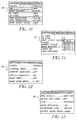
- if a vertically-arranged menu option has its own cascaded menu of sub-options, that cascaded menu is displayed with a disabled appearance, but with the current value highlighted (Fig. 10 and Fig. 11).
- ISO
- White Balance
- Folder
- CF Card
- SD Card
- Raw Resolution
- JPEG Resolution
- Crop Aspect Ratio
- Folder
- External Video
- Overexposure Indicator
- Display Contrast
- Image Mode Menu
- JPEG Quality
- Digital Exposure Correction
- Look
- Noise Reduction
- Sharpening Level
- Output Color Space
- User Mode
- Battery Save
- Vertical Release
- Folder/File Naming
- Language
- Job Tracker
- Firmware
- Reset to Defaults
- Time/Date
- Video Format
- Intervalometer
- Serial Port
- Hotkey
- navigating among folders on a card;
- navigating several images at a time within a folder.
- if the
Image LCD 78 is off, it turns theImage LCD 78 on and displays the currently active Image Mode with the Nav+ overlay.
- a list of folder names that exist on the memory card together with the number of images in each folder;
- a location bar that indicates the position of the current image relative to the total number of images in the folder;
- the location bar will have shading to indicate the number of images in the folder relative to the maximum number of images (maximum =99);
- the location bar will have tick marks every nth image;
- if the
Image LCD 78 is on, it displays the currently active Image Mode with the Nav+ overlay; - displays review-related information on the Digital
Status display LCD 82.
When pressed, the
- if the
Image LCD 78 is off, it turns theImage LCD 78 on and displays the function associated with the first Hotkey position; - if the
Image LCD 78 is on, it displays the function associated with the first Hotkey position; - when used in conjunction with the 4-
way switch 102 it displays the user-selected function;- pressing the Hotkey button and manipulating the right side of
the 4-
way switch 102 sequences through the Tabbed Menu screens associated with the assigned Hotkey positions in an ascending numerical order; the Digital Status Display portrays the information associated with the highlighted menu option; - pressing the
Hotkey button 88 and manipulating the left side of the 4-way switch 102 sequences through the assigned Hotkey positions in a descending numerical order; the Digital Status Display portrays the information associated with the highlighted menu option; - as each Hotkey position is selected, its associated tabbed menu
screen with highlighted function is displayed with a disabled
appearance. When the
Hotkey button 88 is released, the Tabbed Menu screen becomes enabled; - only functions associated with assigned Hotkey positions are displayed (i.e., unassigned positions are ignored for display purposes).
- pressing the Hotkey button and manipulating the right side of
the 4-
- the Reset option allows new functions to be assigned to each of the Hotkey positions;
- the Clear option allows removal of current functions without replacement.
- pressing the
OK button 92 displays the tabbed screen with the currently assigned Hotkey function highlighted, or if the Hotkey position is unassigned, displays the Capture screen with its first option highlighted; the Digital Status display message persists until the Hotkey assignment procedure is completed. - pressing the Cancel button terminates the Hotkey assignment process and displays the Tools screen with the Hotkey option highlighted; the Digital Status display reverts to its previous state.
- pressing the
OK button 92 assigns the highlighted function to the current Hotkey position and displays the Hotkey menu with the new function highlighted as feedback. - pressing the Cancel button 94 displays the following message screen (Fig. 19).
- when the above screen is displayed pressing the
OK button 92 returns the user to the previously displayed tabbed screen with the selected function highlighted - pressing the Cancel button 94 exits the Hotkey assignment procedure and returns the user to the Tools tab with Hotkey option highlighted
- pressing and holding the
Digital Status button 90 highlights the last-usedDigital Status display 82 function, traps the 4-way switch 102, and displays the tabbed Menu screen for the highlighted function (disabled appearance) on theImage Display 78;- if review-related information is displayed, pressing the
Digital Status button 90 displays capture-related information and highlights the icon associated with the last-accessed function highlighted;
- if review-related information is displayed, pressing the
- when the
Digital Status button 90 is released, the Menu function is enabled.
- displays a set of icons associated with capture-critical functions; these icons portray the current value of each function.
- serves as a shortcut to a relevant menu option for changing the displayed value of the highlighted function.
Claims (5)
- A digital camera comprising:a display; means for displaying on said display a menu of user selectable options;first user activated means for sequentially navigating through said displayed menu of user selectable options; andsecond user activated means for directly choosing a predetermined one of said options without having to navigate sequentially through said options.
- The camera of claim 1 wherein said means for displaying displays said menu of user selectable options in a linear array, and wherein said first user actuated means is repeatedly actuated to navigate through said linear array of options.
- The camera of claim 1 wherein said means for displaying displays said menu of user selectable options in a vertical array and wherein said first user actuated means has up and down switches which when actuated sequentially navigate through said vertical array of options in up and down directions, respectively.
- The camera of claim 1 wherein said means for displaying displays at least two menus of user selectable options, each menu including a vertical array of different options, only one menu being displayed at one time, and tabs identifying each menu being arrayed horizontally, and wherein said first user actuated means includes up and down switches, which when actuated sequentially navigate though the vertical array of options of a menu in up and down directions respectively, and further includes right side and left side switches, which when actuated sequentially navigate through said horizontally arrayed tabs in righthand or lefthand directions respectively.
- The camera of claim 1 wherein said second user actuated means includes means for identifying a plurality of predetermined functions and a user actuated switch which can be actuated respectively to directly choose said predetermined functions.
Applications Claiming Priority (2)
| Application Number | Priority Date | Filing Date | Title |
|---|---|---|---|
| US10/243,030 US7827508B2 (en) | 2002-09-13 | 2002-09-13 | Hotkey function in digital camera user interface |
| US243030 | 2002-09-13 |
Publications (2)
| Publication Number | Publication Date |
|---|---|
| EP1398959A2 true EP1398959A2 (en) | 2004-03-17 |
| EP1398959A3 EP1398959A3 (en) | 2006-01-04 |
Family
ID=31887790
Family Applications (1)
| Application Number | Title | Priority Date | Filing Date |
|---|---|---|---|
| EP03077743A Withdrawn EP1398959A3 (en) | 2002-09-13 | 2003-09-01 | Hotkey function in digital camera user interface |
Country Status (3)
| Country | Link |
|---|---|
| US (1) | US7827508B2 (en) |
| EP (1) | EP1398959A3 (en) |
| JP (1) | JP2004135271A (en) |
Cited By (3)
| Publication number | Priority date | Publication date | Assignee | Title |
|---|---|---|---|---|
| EP1821520A1 (en) * | 2006-02-15 | 2007-08-22 | Canon Kabushiki Kaisha | Image pickup apparatus with display apparatus, and display control method for display apparatus |
| EP1841211A2 (en) | 2006-03-31 | 2007-10-03 | Sony Corporation | Image capturing apparatus, electronic apparatus, display method, and program |
| EP1727025A4 (en) * | 2004-03-17 | 2011-03-09 | Sony Corp | ELECTRONIC DEVICE AND METHOD FOR ASSIGNING FUNCTIONS |
Families Citing this family (27)
| Publication number | Priority date | Publication date | Assignee | Title |
|---|---|---|---|---|
| US20080306886A1 (en) * | 2001-11-14 | 2008-12-11 | Retaildna, Llc | Graphical user interface adaptation system for a point of sale device |
| KR20040110155A (en) * | 2003-06-18 | 2004-12-31 | 삼성테크윈 주식회사 | Method for controlling portable digital apparatus wherein folder icons move |
| US20050190971A1 (en) * | 2004-02-26 | 2005-09-01 | Brubacher-Cressman Dale K. | Handheld electronic device having improved help facility and associated method |
| US8103970B1 (en) | 2004-03-08 | 2012-01-24 | Cellco Partnership | Method and device for providing a multi-level user interface having a dynamic key assignment for a cellularly communicative device |
| ATE389867T1 (en) * | 2004-04-30 | 2008-04-15 | Harman Becker Automotive Sys | VEHICLE MULTIMEDIA SYSTEM AND METHOD FOR ACTIVATING A FUNCTION OF SUCH A SYSTEM |
| US20060214917A1 (en) * | 2005-03-23 | 2006-09-28 | Inventec Corporation | Key function switching method and system |
| KR100714703B1 (en) * | 2005-07-21 | 2007-05-07 | 삼성전자주식회사 | Integrated digital device |
| JP2007041119A (en) | 2005-08-01 | 2007-02-15 | Olympus Imaging Corp | Imaging apparatus and imaging method |
| US20070186183A1 (en) * | 2006-02-06 | 2007-08-09 | International Business Machines Corporation | User interface for presenting a palette of items |
| US8607149B2 (en) * | 2006-03-23 | 2013-12-10 | International Business Machines Corporation | Highlighting related user interface controls |
| KR100739004B1 (en) | 2006-07-10 | 2007-07-13 | 삼성전자주식회사 | System, mobile communication terminal and method for storing information in web storage using wireless LAN service |
| CN101141569B (en) * | 2006-09-04 | 2010-11-17 | 佛山普立华科技有限公司 | Method of performing pick-up image through fast switching combination of different pick-up parameters |
| KR100784969B1 (en) * | 2006-12-20 | 2007-12-11 | 삼성전자주식회사 | How to Display History-Based Menus on Mobile Devices |
| USD609714S1 (en) * | 2007-03-22 | 2010-02-09 | Fujifilm Corporation | Electronic camera |
| KR20100082895A (en) * | 2009-01-12 | 2010-07-21 | 삼성전자주식회사 | Method for menu performance using hot key in potable terminal and apparatus thereof |
| US10565065B2 (en) | 2009-04-28 | 2020-02-18 | Getac Technology Corporation | Data backup and transfer across multiple cloud computing providers |
| US8311983B2 (en) * | 2009-04-28 | 2012-11-13 | Whp Workflow Solutions, Llc | Correlated media for distributed sources |
| US9760573B2 (en) | 2009-04-28 | 2017-09-12 | Whp Workflow Solutions, Llc | Situational awareness |
| US10419722B2 (en) | 2009-04-28 | 2019-09-17 | Whp Workflow Solutions, Inc. | Correlated media source management and response control |
| KR101427114B1 (en) * | 2009-10-30 | 2014-08-07 | 삼성전자 주식회사 | Image forming apparatus and enlargement display method of target area thereof |
| WO2011075076A1 (en) * | 2009-12-16 | 2011-06-23 | T-Data Systems (S) Pte Ltd | Method of converting digital data |
| US9485411B2 (en) * | 2011-10-28 | 2016-11-01 | Canon Kabushiki Kaisha | Display control apparatus and method for controlling display control apparatus |
| JP5893341B2 (en) * | 2011-10-28 | 2016-03-23 | キヤノン株式会社 | Display control apparatus, display control apparatus control method, and program |
| JP5906097B2 (en) | 2012-01-31 | 2016-04-20 | キヤノン株式会社 | Electronic device, its control method, program, and recording medium |
| TWI486868B (en) * | 2012-12-26 | 2015-06-01 | Giga Byte Tech Co Ltd | Electrionic device with shortcut function and control method thereof |
| US10254922B2 (en) | 2014-09-12 | 2019-04-09 | Canon Kabushiki Kaisha | User interface for customizing menus |
| US11024856B2 (en) | 2016-08-08 | 2021-06-01 | Morimura Sofc Technology Co., Ltd. | Electrochemical reaction single cell having cathode including cerium oxide and strontium sulfate and electrochemical reaction cell stack including the same |
Family Cites Families (21)
| Publication number | Priority date | Publication date | Assignee | Title |
|---|---|---|---|---|
| US4982291A (en) * | 1987-08-27 | 1991-01-01 | Casio Computer Co., Ltd. | Electronic still video camera capable of searching desired picture in simple and quick manner |
| US5164831A (en) * | 1990-03-15 | 1992-11-17 | Eastman Kodak Company | Electronic still camera providing multi-format storage of full and reduced resolution images |
| JPH07175120A (en) * | 1993-12-20 | 1995-07-14 | Nikon Corp | Camera data imprinting device |
| EP0679021B1 (en) * | 1994-04-19 | 2010-12-15 | Eastman Kodak Company | Automatic camera exposure control using variable exposure index CCD sensor |
| US5784059A (en) * | 1994-09-16 | 1998-07-21 | Aisin Aw Co., Ltd. | Vehicle navigation system with destination selection using hierarchical menu arrangement with selective level skipping |
| JP4397054B2 (en) * | 1996-06-13 | 2010-01-13 | 株式会社ニコン | Information input device |
| US5808610A (en) * | 1996-08-28 | 1998-09-15 | Macromedia, Inc. | Method and system of docking panels |
| JP4408456B2 (en) * | 1997-02-14 | 2010-02-03 | 株式会社ニコン | Information processing device |
| JPH10313444A (en) * | 1997-05-13 | 1998-11-24 | Nikon Corp | Information processing device and recording medium |
| US6313877B1 (en) * | 1997-08-29 | 2001-11-06 | Flashpoint Technology, Inc. | Method and system for automatically managing display formats for a peripheral display coupled to a digital imaging device |
| JP4540134B2 (en) * | 1997-11-05 | 2010-09-08 | 株式会社ニコン | Information processing apparatus and method, and recording medium |
| US6396537B1 (en) * | 1997-11-24 | 2002-05-28 | Eastman Kodak Company | Photographic system for enabling interactive communication between a camera and an attraction site |
| US6154210A (en) * | 1998-11-25 | 2000-11-28 | Flashpoint Technology, Inc. | Method and system for implementing button interface compatibility in touch-screen equipped digital imaging device |
| US6952229B1 (en) * | 1999-04-13 | 2005-10-04 | Seiko Epson Corporation | Digital camera having input devices and a display capable of displaying a plurality of set information items |
| JP3862132B2 (en) | 1999-11-04 | 2006-12-27 | 富士フイルムホールディングス株式会社 | Electronic still camera |
| US20010043279A1 (en) * | 2000-03-07 | 2001-11-22 | Masahito Niikawa | Digital camera |
| JP2001333374A (en) * | 2000-05-23 | 2001-11-30 | Asahi Optical Co Ltd | Continuous shooting image processing device |
| JP2002009922A (en) | 2000-06-16 | 2002-01-11 | Sony Corp | Mobile phone |
| JP4140181B2 (en) | 2000-09-08 | 2008-08-27 | 富士フイルム株式会社 | Electronic camera |
| JP2002261918A (en) * | 2001-03-02 | 2002-09-13 | Hitachi Ltd | Mobile phone |
| US20030206239A1 (en) * | 2002-05-06 | 2003-11-06 | Battles Amy E. | Menu navigation system and method |
-
2002
- 2002-09-13 US US10/243,030 patent/US7827508B2/en active Active
-
2003
- 2003-08-13 JP JP2003207454A patent/JP2004135271A/en active Pending
- 2003-09-01 EP EP03077743A patent/EP1398959A3/en not_active Withdrawn
Cited By (9)
| Publication number | Priority date | Publication date | Assignee | Title |
|---|---|---|---|---|
| EP1727025A4 (en) * | 2004-03-17 | 2011-03-09 | Sony Corp | ELECTRONIC DEVICE AND METHOD FOR ASSIGNING FUNCTIONS |
| US8990730B2 (en) | 2004-03-17 | 2015-03-24 | Sony Corporation | Electronic device and function assigning method |
| US10063771B2 (en) | 2004-03-17 | 2018-08-28 | Sony Corporation | Electronic device and function assigning method |
| US10992858B2 (en) | 2004-03-17 | 2021-04-27 | Sony Corporation | Electronic device and function assigning method |
| US11356602B2 (en) | 2004-03-17 | 2022-06-07 | Sony Group Corporation | Electronic device and function assigning method |
| EP1821520A1 (en) * | 2006-02-15 | 2007-08-22 | Canon Kabushiki Kaisha | Image pickup apparatus with display apparatus, and display control method for display apparatus |
| US8023031B2 (en) | 2006-02-15 | 2011-09-20 | Canon Kabushiki Kaisha | Image pickup apparatus with display apparatus, and display control method for display apparatus |
| EP1841211A2 (en) | 2006-03-31 | 2007-10-03 | Sony Corporation | Image capturing apparatus, electronic apparatus, display method, and program |
| EP1841211A3 (en) * | 2006-03-31 | 2011-09-07 | Sony Corporation | Image capturing apparatus, electronic apparatus, display method, and program |
Also Published As
| Publication number | Publication date |
|---|---|
| JP2004135271A (en) | 2004-04-30 |
| EP1398959A3 (en) | 2006-01-04 |
| US7827508B2 (en) | 2010-11-02 |
| US20040051741A1 (en) | 2004-03-18 |
Similar Documents
| Publication | Publication Date | Title |
|---|---|---|
| US7827508B2 (en) | Hotkey function in digital camera user interface | |
| US7106375B2 (en) | Mutual display support for a digital information/imaging system | |
| US7265786B2 (en) | Display overlay containing spatially-distributed menu options for a digital camera user interface | |
| US6519003B1 (en) | Camera with combination four-way directional and mode control interface | |
| EP0981898B1 (en) | A digital camera with multiple operating modes | |
| US6504575B1 (en) | Method and system for displaying overlay bars in a digital imaging device | |
| US6222538B1 (en) | Directing image capture sequences in a digital imaging device using scripts | |
| US6122003A (en) | Method and apparatus for changing operating modes of an image capture device | |
| US6943842B2 (en) | Image browsing user interface apparatus and method | |
| US6700612B1 (en) | Reviewing and navigating among images on an image capture unit using a thumbnail position memory bar | |
| US6370282B1 (en) | Method and system for advanced text editing in a portable digital electronic device using a button interface | |
| EP1075760B1 (en) | A method and system for a digital image capture device | |
| EP0993737B1 (en) | A method and system for speculative decompression of compressed image data in an image capture unit | |
| US6262769B1 (en) | Method and system for auto rotating a graphical user interface for managing portrait and landscape images in an image capture unit | |
| US8884882B2 (en) | Mobile equipment with display function | |
| US20030151668A1 (en) | Electronic camera | |
| US20070097088A1 (en) | Imaging device scrolling touch pad with tap points | |
| US6980700B2 (en) | Image processing apparatus and method of storage medium | |
| HK1212839A1 (en) | Imaging apparatus, image editing method and program | |
| US20040027461A1 (en) | Digital camera image re-compression feature associated with an image deletion selection | |
| JP2003337643A (en) | Method for setting intent and user interface for video apparatus | |
| JP4862267B2 (en) | Image display device | |
| JPH11261852A (en) | Electronic camera having menu function, and machine-readable recording medium recording "program having menu function" | |
| JP2000156814A (en) | Image photographing apparatus, image output apparatus, and program recording medium for them | |
| JP4025856B2 (en) | Image display device |
Legal Events
| Date | Code | Title | Description |
|---|---|---|---|
| PUAI | Public reference made under article 153(3) epc to a published international application that has entered the european phase |
Free format text: ORIGINAL CODE: 0009012 |
|
| AK | Designated contracting states |
Kind code of ref document: A2 Designated state(s): AT BE BG CH CY CZ DE DK EE ES FI FR GB GR HU IE IT LI LU MC NL PT RO SE SI SK TR |
|
| AX | Request for extension of the european patent |
Extension state: AL LT LV MK |
|
| PUAL | Search report despatched |
Free format text: ORIGINAL CODE: 0009013 |
|
| AK | Designated contracting states |
Kind code of ref document: A3 Designated state(s): AT BE BG CH CY CZ DE DK EE ES FI FR GB GR HU IE IT LI LU MC NL PT RO SE SI SK TR |
|
| AX | Request for extension of the european patent |
Extension state: AL LT LV MK |
|
| 17P | Request for examination filed |
Effective date: 20060617 |
|
| AKX | Designation fees paid |
Designated state(s): DE FR GB |
|
| 17Q | First examination report despatched |
Effective date: 20060818 |
|
| STAA | Information on the status of an ep patent application or granted ep patent |
Free format text: STATUS: THE APPLICATION HAS BEEN WITHDRAWN |
|
| 18W | Application withdrawn |
Effective date: 20090425 |